
Version 6.2.0 - CSP 6.48.0 - UE 5.8
This guide will cover how Nodey is supported inside Unreal Editor using the OKO Plugin.
Instructions
Nodey by Magnopus bridges generative AI and professional 3D production, using real 3D data to deliver studio-quality results without compromise.
Thanks to Unreal Engine's built-in web browser and the OKO Unreal plugin, you can now use Nodey directly inside your Unreal editor. This isn't just content transfer – it’s a direct bridge between Unreal and Nodey that bypasses OKO's asset conversion completely. The result? Pure, uncompromised Unreal Engine fidelity right inside Nodey, without interrupting your workflow.
Setting up
Setting up is easy.
-
Firstly, open Unreal Editor.
-
Make sure you have the OKO Plugin installed and enabled.
-
Sign in to your OKO account.
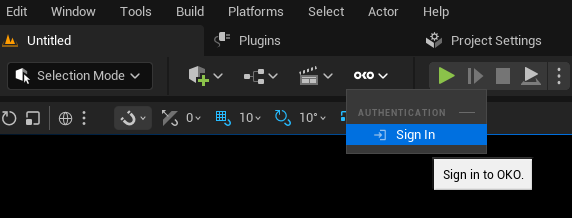
-
Now select the
Window->OKO->Nodeymenu option.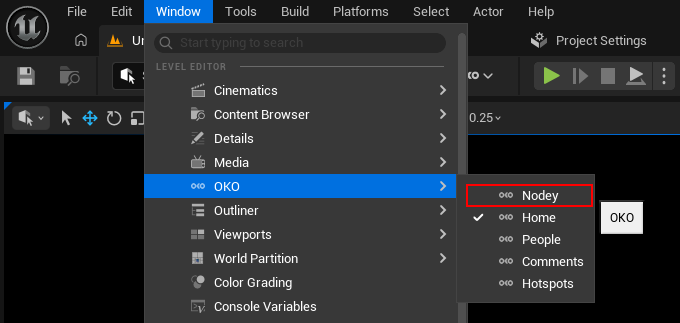
-
A new window appears! That’s it, you can now access Nodey! As this is a dockable window, you can drag and change its size, or drag it away to use on a second screen.
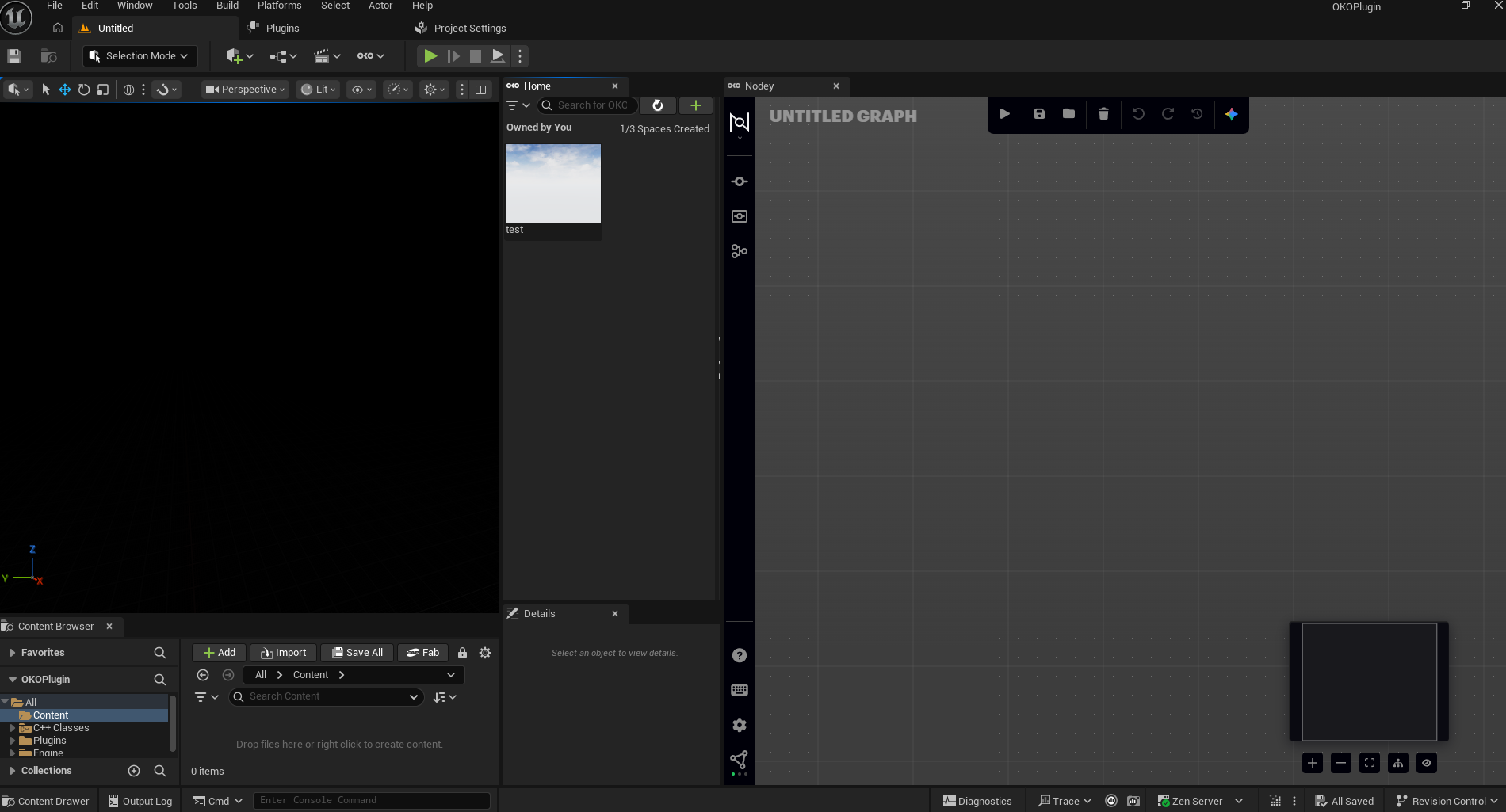
Unreal Nodes in Nodey
You can send most types of content from Unreal to Nodey and from Nodey back into Unreal, though it’s not as simple as drag and drop. Instead, you must do this by adding nodes to your Nodey graph to bring in content from Unreal and send content back to Unreal. But don’t worry, due to the way Nodey works using chains of Nodes linking input and output using wires, this will become second nature before too long.
What’s available for Unreal
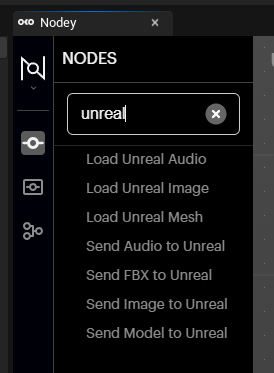
We’re adding new Unreal-based nodes to Nodey all the time. If you want to see what’s currently available, select the node library and filter using Unreal. You can find a complete glossary of all the available nodes here.
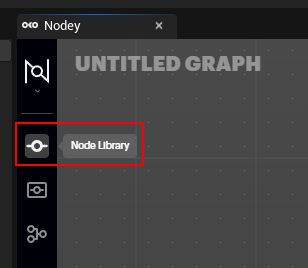
How to use it
So if we can’t drag and drop directly from Unreal into Nodey, how do we transfer content? We use the Load Unreal nodes.
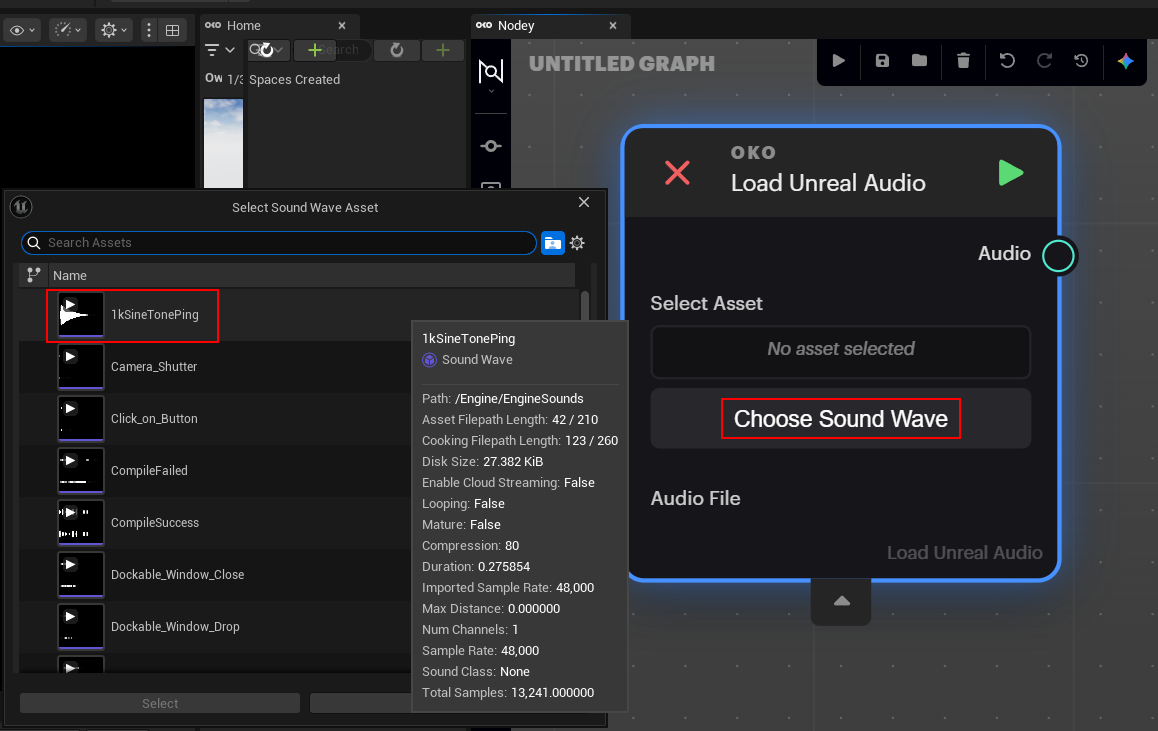
For example, if we create a Load Unreal Audio node and select Choose Sound Wave, it opens a dialog where we can select a sound wave asset from the Unreal content browser.
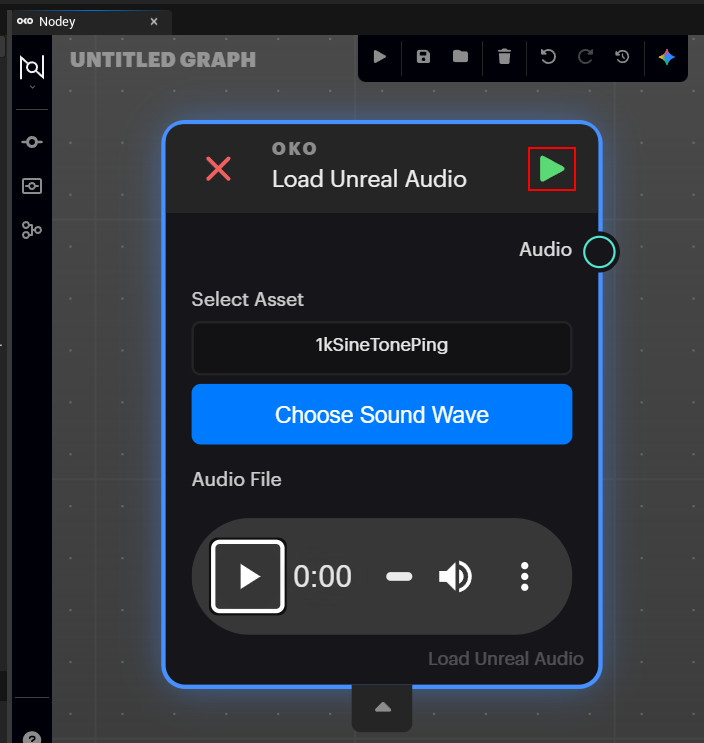
Once we’ve selected our content for Nodey, we then press the green play button (highlighted) to process it. Once it’s finished, it’s available to preview in the Node. We can pass this content into another node using the Audio output wire and do pretty much whatever we want with it!
But how do we send content back to Unreal? We use the Send To Unreal nodes.
So if we want to send the audio, we just Send Audio to Unreal.
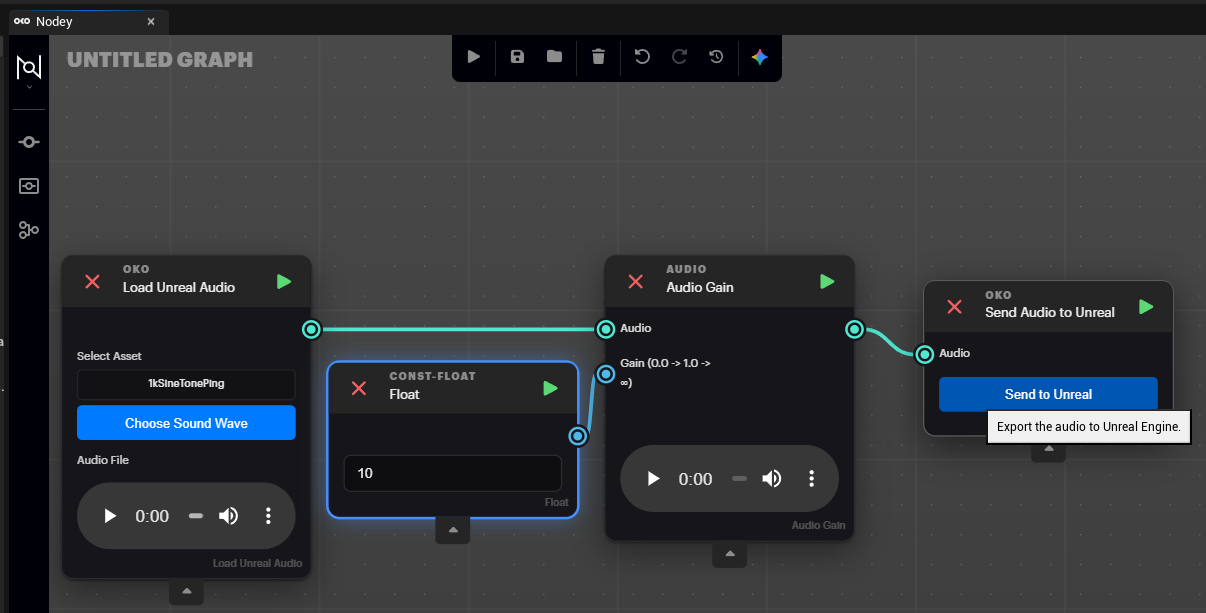
In the following graph, you can see Nodey in action. We load an audio file from Unreal. Add a gain of 10, then send the resultant audio back to Unreal using the Send Audio To Unreal node. Note that we need to make sure we process all nodes in the chain, and we only send the audio back to Unreal when we hit the Send to Unreal button in the last node in the chain.
So this works the same for other currently supported content types such as images and meshes.
That’s pretty much it! We have more Unreal to Nodey features in development, so be sure to check what’s available with every new release of the Unreal OKO Plugin.