
Version 6.2.0 - CSP 6.48.0 - UE 5.8
This guide will cover how to mix Unreal and OKO with the OKO plugin.
Mutual exclusivity between Unreal levels and OKO spaces
Unreal levels and OKO spaces can both contain scene content. If both are active in the Unreal Editor at the same time, their content may overlap or be confusing to work with.
The OKOSpaces Use Blank Level setting controls whether the plugin opens a blank Unreal level before you enter an OKO space.
Recommended setting
For most workflows, leave OKOSpaces Use Blank Level enabled. This keeps the active Unreal level separate from the OKO space you are editing.
To find the setting, open Project Settings > OKO > Editor Extensions, then look under Levels.
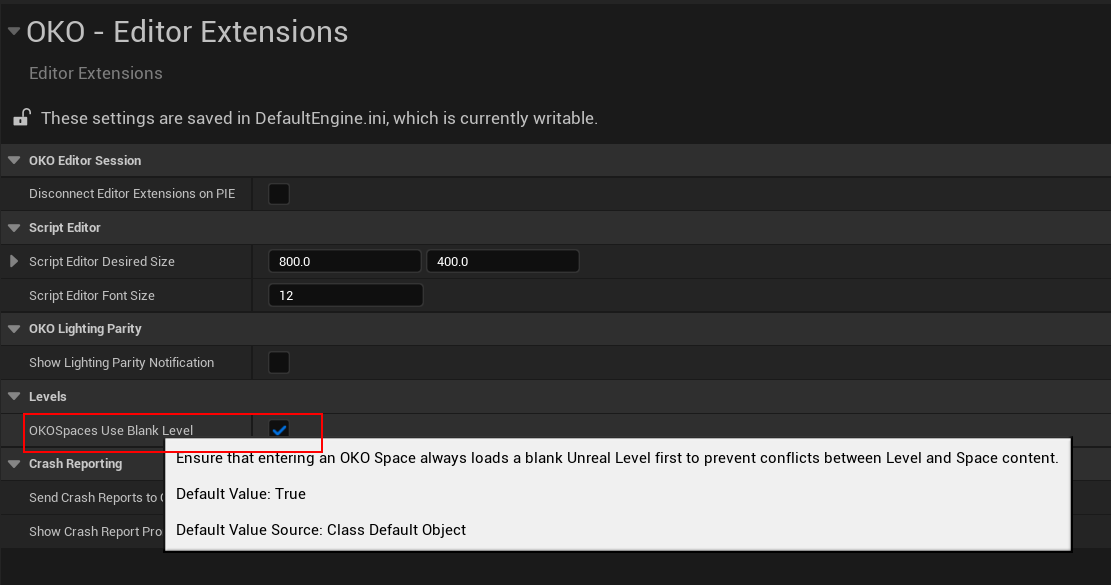
When enabled, entering an OKO space from a non-blank Unreal level opens a blank level first. Unreal may ask whether you want to save changes to the level you are leaving. Your saved level remains available to open again later. Note that this setting is enabled by default.
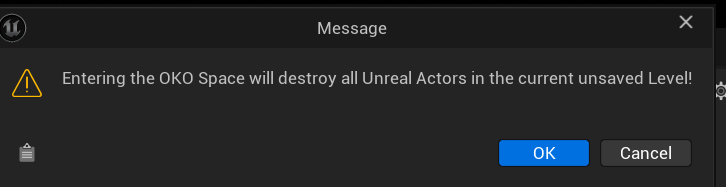
If you are already in a blank, unsaved level that contains Unreal actors, the plugin warns you before entering the space. Continuing removes those actors from that unsaved level; canceling keeps you from entering the space. Save or move anything you need before continuing.
When to disable the setting
You can disable OKOSpaces Use Blank Level if your workflow requires Unreal level content to remain loaded while you work in an OKO space. Keep in mind that Unreal actors and OKO Space Entities may then appear together in the editor, which can make it harder to tell which content belongs to the level and which belongs to the space.
Loading another Unreal level while you are in an OKO space exits the space. The plugin asks whether you want to re-enter it after the level loads.
For more information, see Adding assets to a space and Exporting an Unreal level to OKO.
Identifying Unreal and OKO objects sharing the same level and space
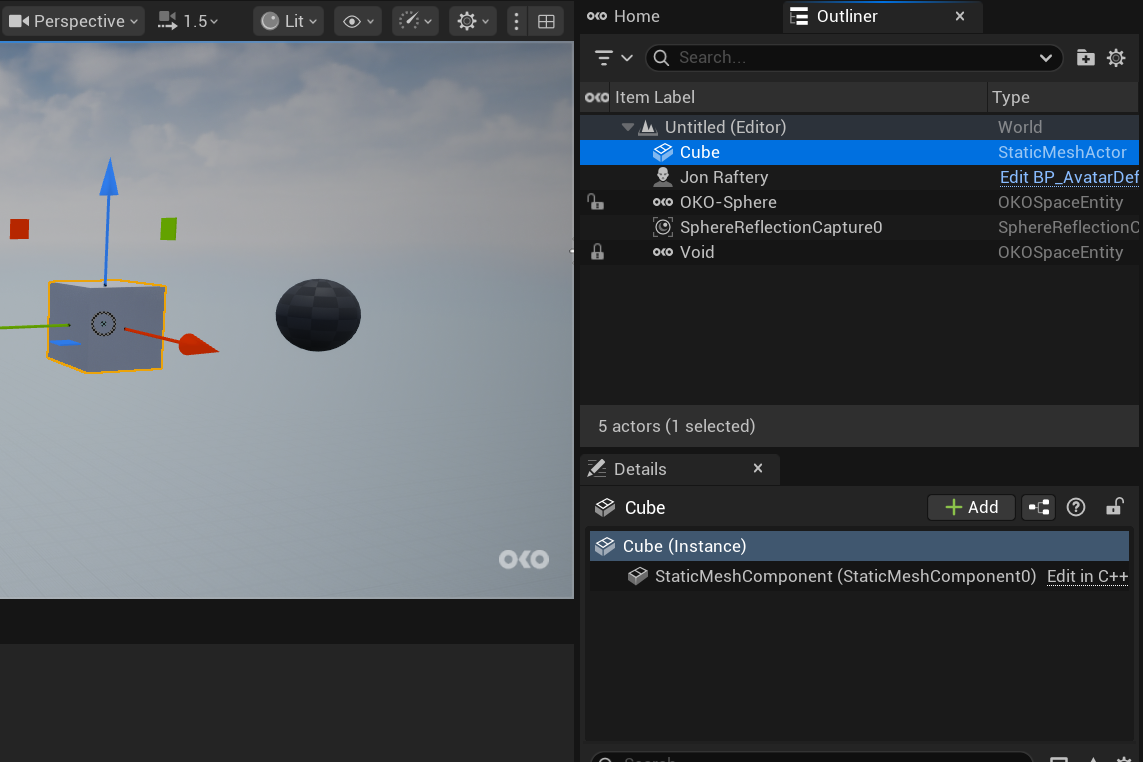
If you decide to disable the Use Blank Level option you can differentiate between Unreal and OKO objects by seeing if there’s an OKO icon next to the object. In the example below the OKO sphere has the OKO icon next to it, the Unreal cube doesn’t. This means that the Sphere is present in the OKO space but the cube isn’t.
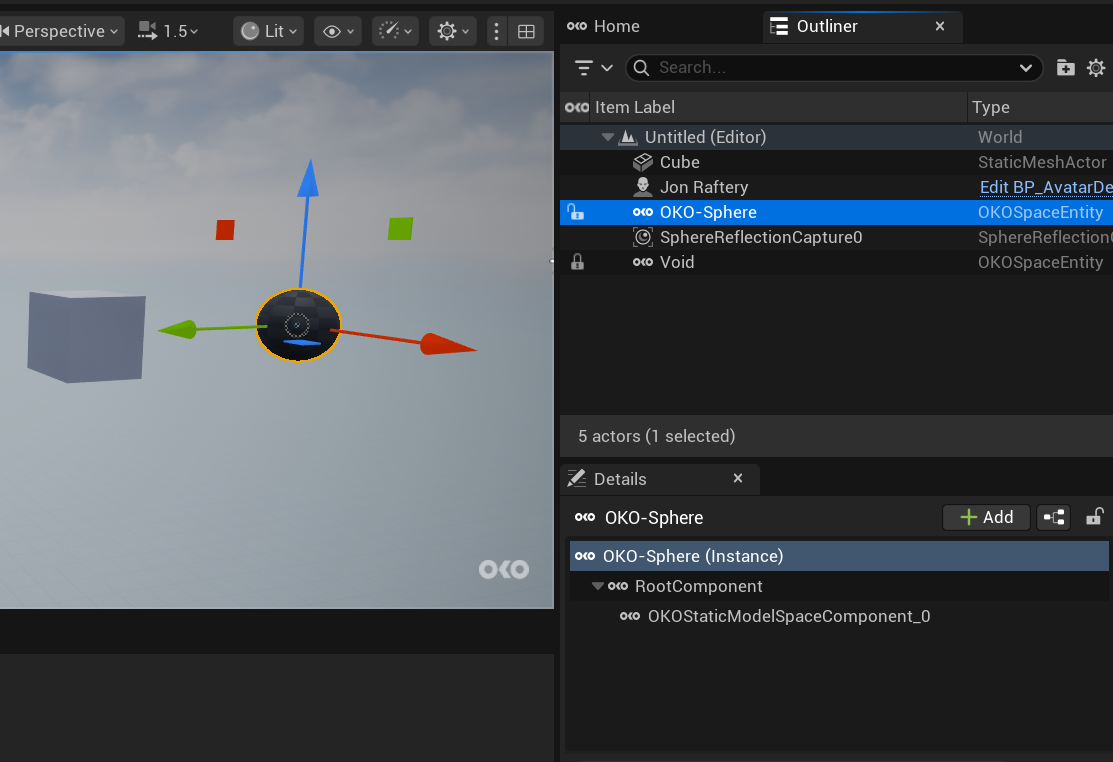
It’s important to note that if you want to convert an Unreal Actor into an OKO space entity, the Unreal Actor will be removed as part of the conversion. All of the supported components will be converted to their OKO equivalents.
Using Play In Editor while in an OKO space
The Disconnect Editor Extensions on PIE setting controls what happens to your OKO editor session when you start Play In Editor (PIE). You can find it under Project Settings > OKO > Editor Extensions > OKO Editor Session.
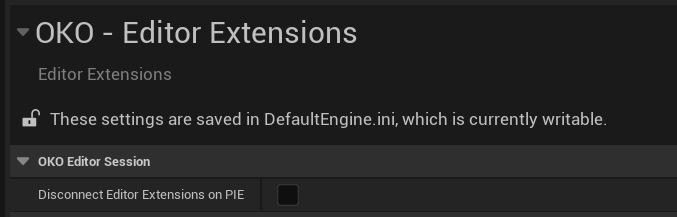
This setting is off by default. When it is off, starting PIE does not automatically exit your OKO space or log you out. Your OKO editor session stays connected.
When the setting is enabled, the plugin exits your current OKO space, if you’re in one, and logs you out when PIE starts. After playing, you’ll need to log in and re-enter the space.