
Version 4.10.1 - CSP 6.42.0 - UE 5.7
This guide shows how to convert an Unreal Reflection Capture into an OKO Reflection Component and publish reflections to OKO clients.
Before you start: Configure level lighting in Unreal (Directional Light, Skylight, etc.) before entering an OKO space. Unreal light actors are not converted to OKO entities and must be managed in the Unreal level.
Instructions
Enter an OKO space.
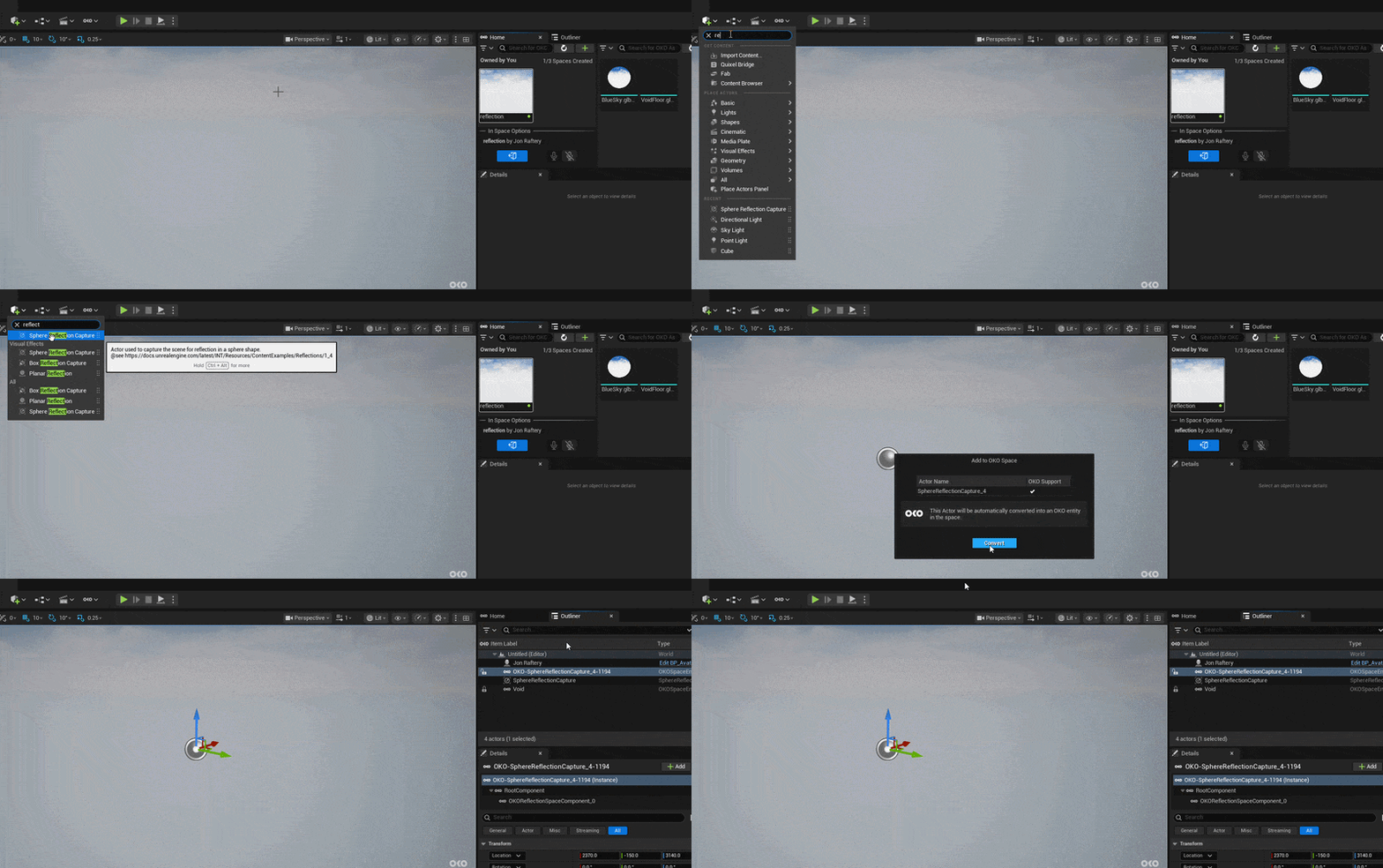
Add a new Unreal Box or Sphere Reflection Capture to the space (if there is not one already in the scene). Position and scale it to cover the intended reflective area. When you drag the new Unreal Reflection Capture to the space this will create a new OKO actor with an OKO Reflection Component.
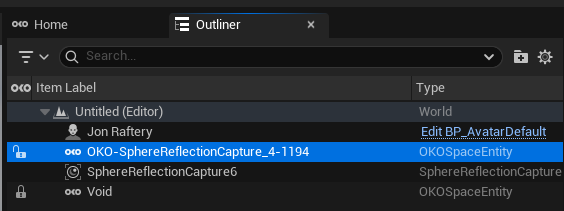
Make sure assets/lights in the scene that you want to include in the reflections HDRI are set to “static”. Please note that at the moment, all OKO assets loaded in a space are movable by default, so they need to be changed manually if you want them to be included in the reflection.
There are two ways you can generate reflection data; either by capturing the scene or using a textured cubemap.
Captured Scene workflow
Use this when you want Unreal to capture the scene and generate reflection data.
Select the Unreal Reflection Capture actor and set Reflection Source Type to Captured Scene.
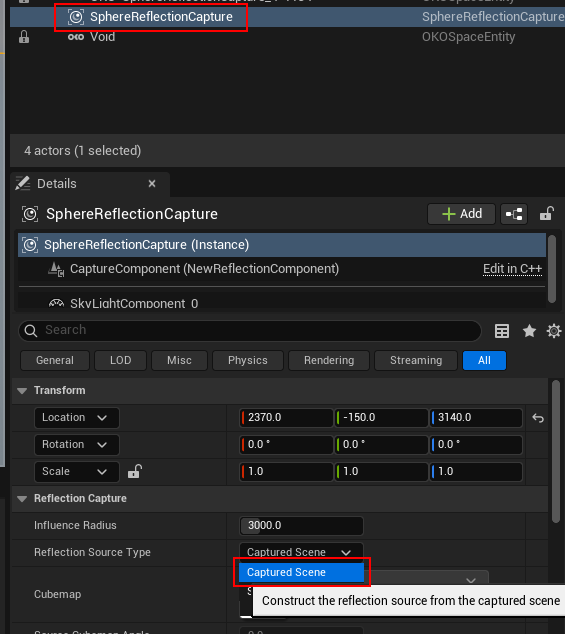
Ensure objects/lights intended for the capture are configured appropriately for your lighting workflow.
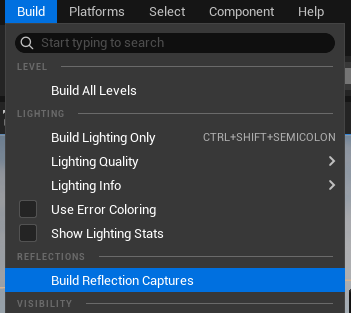
Now build reflections by going to Build->Build Reflection Captures.
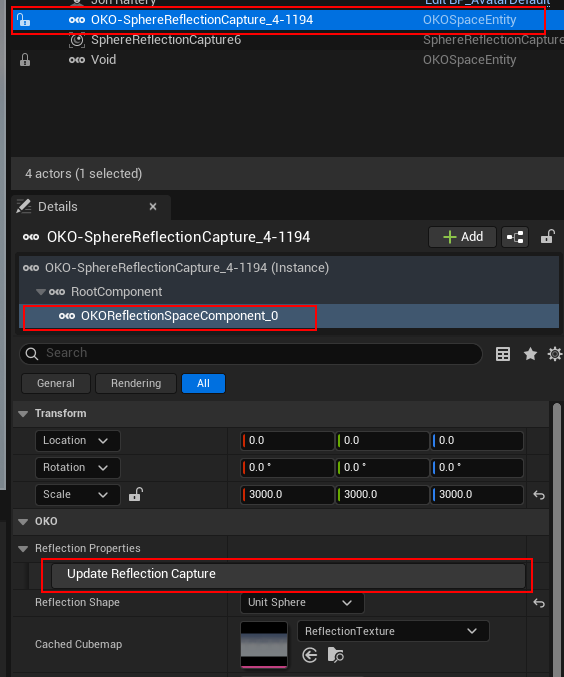
Click on the “update reflection capture” button in the OKO Reflection Component details panel. This will get the Unreal reflections, generate an HDRI, and send that to the Cloud Services so that all clients can use it.
Specified Cubemap workflow
Use this workflow when you want to supply your own cubemap.
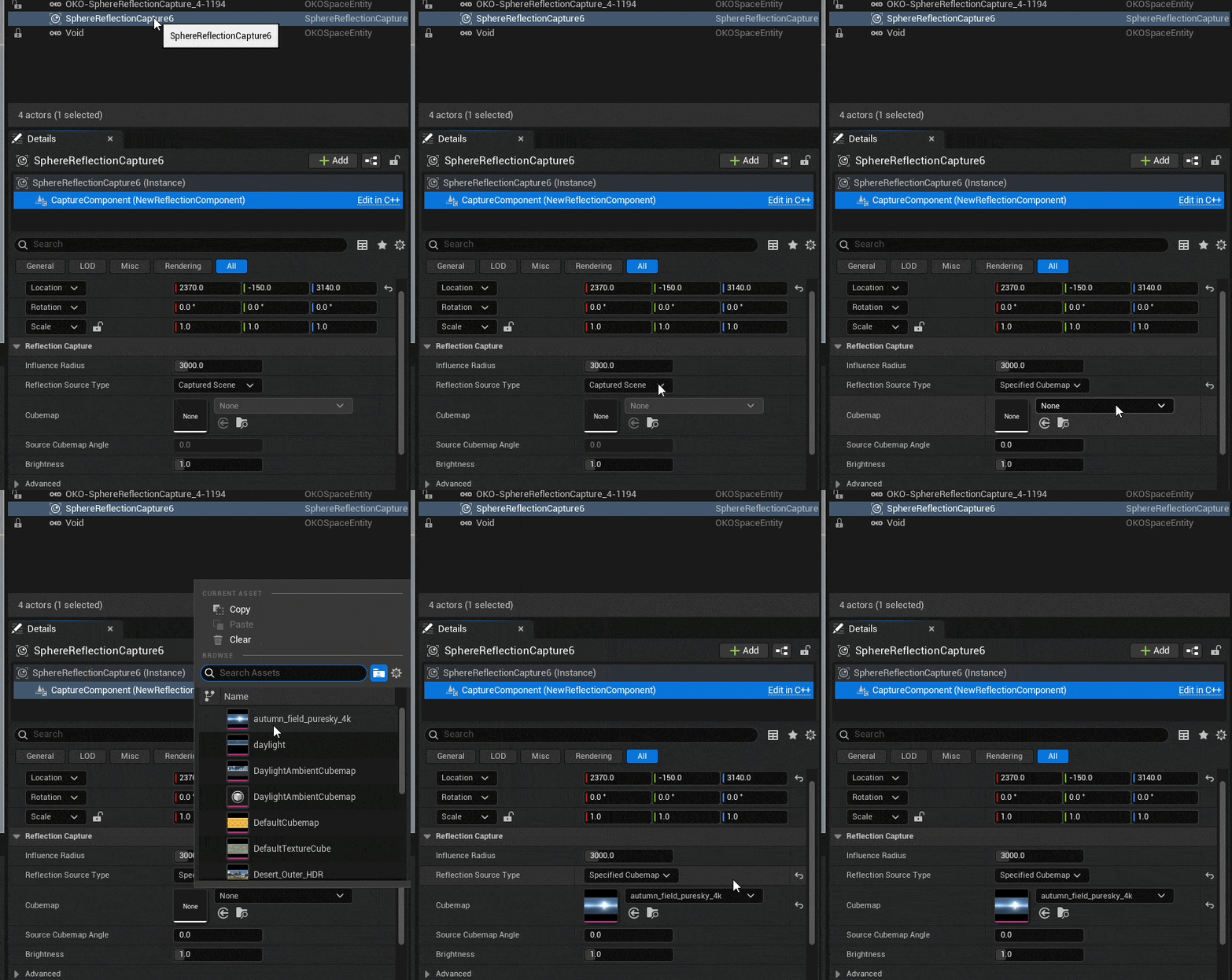
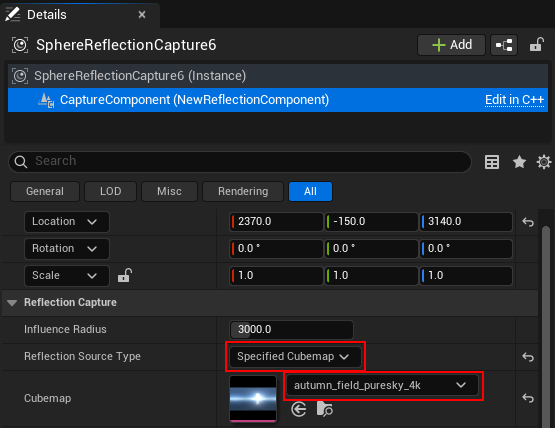
First, Select the Unreal Reflection Capture actor. Then Set Reflection Source Type to Specified Cubemap. Assign a valid authored TextureCube (not DefaultCubemap).
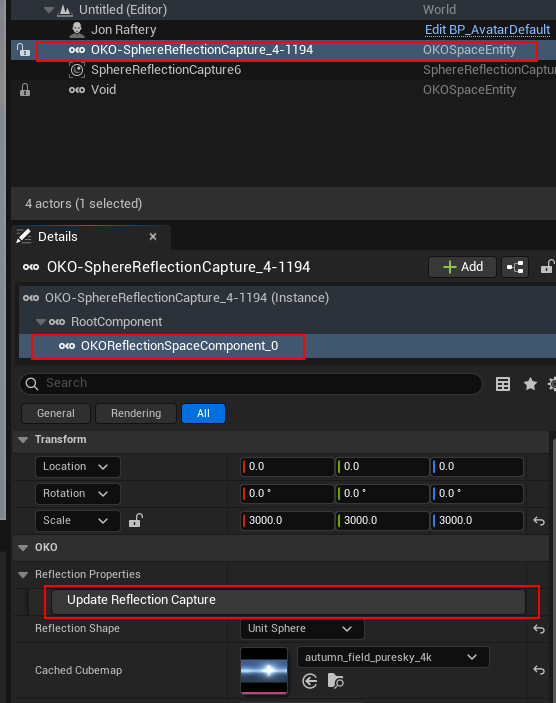
In the OKO Reflection Component, set Cached Cubemap to the same valid TextureCube. Click Update Reflection Capture.
Summary
If you used the Captured Scene workflow, the HDRI is uploaded to Cloud Services and will automatically be downloaded and applied when you re-enter the OKO space. If you used the Specified Cubemap workflow, the cubemap is applied locally to the Reflection Capture but will not persist when you exit and re-enter the space — you will need to re-apply it.
After completing these steps, if you want to re-build reflections again, you will need to follow the “Captured Scene” workflow.
OKO Reflection component properties
Once an OKO Reflection Component has been added to the space, the following OKO Reflection Component properties can be customized (and they will be replicated on all clients):
-
Reflection Shape can be Unit Sphere, Unit Box, or Undefined. This is useful to switch between Box and Sphere Reflection Captures.
-
Changing the OKO Reflection Component Scale will change the capture scale. Specifically, in the case of a Sphere Reflection Capture, the X value of the Scale is used as radius.
Known issues
If you are working in an existing Unreal level, enter an OKO space and convert an existing Unreal Reflection Capture actor into OKO. Once you exit the space, the Unreal Reflection Capture actor will be destroyed, leaving the original Unreal level without Reflection Capture. Once you re-enter the OKO space, the capture will reappear.
We are currently working on a new feature that will correct this behaviour. But for now, it’s highly recommended to create copies of existing Unreal levels/reflection captures and work with those when trying to import them into OKO.