This guide will cover how MCP is supported inside Unreal Editor using the OKO Plugin.
Overview
The OKO MCP Tools Plugin (OKOMcpTools) is an optional companion plugin for the OKO Unreal Engine plugin. It exposes core OKO platform workflows and Unreal Editor actions to AI assistants using Unreal Engine’s Model Context Protocol (MCP) tool framework.
This integration enables developers and creators to manage OKO spaces, entities, components, and assets directly within the Unreal Engine Editor using AI agents.
Instructions
The OKOMcpTools plugin acts as a bridge between AI clients (such as Claude, VS Code AI tools, or custom LLM integrations) and the OKO platform inside Unreal Engine.
Key Characteristics:
Optional Architecture: The core OKO plugin does not depend on MCP. Projects that do not require AI agent workflows can use OKO without installing or enabling OKOMcpTools or Epic's Unreal MCP plugin.
Asynchronous Operations: Cloud-backed OKO operations return an OperationId immediately with a Pending status. AI agents poll OKOGetOperation until the operation returns a Success or Failure state.
Safety & Preflight Check: Includes a built-in preflight utility (OKOPreflight) to validate environmental requirements (Engine version, active world, login status, and space entry) before executing complex actions.
Structured Schemas: Exposes JSON schemas for components and properties, allowing AI agents to discover and safely configure supported OKO component types.
Prerequisites & Requirements
Before using OKO MCP Tools, ensure your setup meets the following requirements:
Unreal Engine: Version 5.8 or later.
OKO Account: An active OKO account signed in within the Unreal Editor.
The required plugins (see below)
Setup and Configuration
1. Enabling the Plugins
In Unreal Editor, navigate to Edit > Plugins.
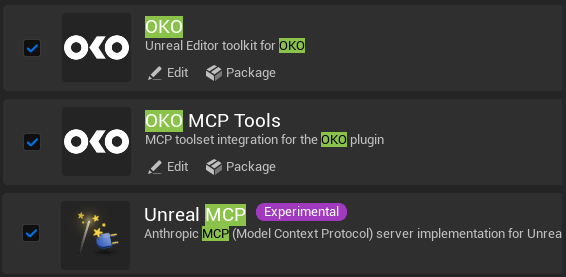
Search for and enable the following plugins:
OKO (version 6.3.0 or greater)
OKO MCP Tools
Unreal MCP
plugins required for OKO MCP
Restart Unreal Editor when prompted.
2. Configuring the MCP Server
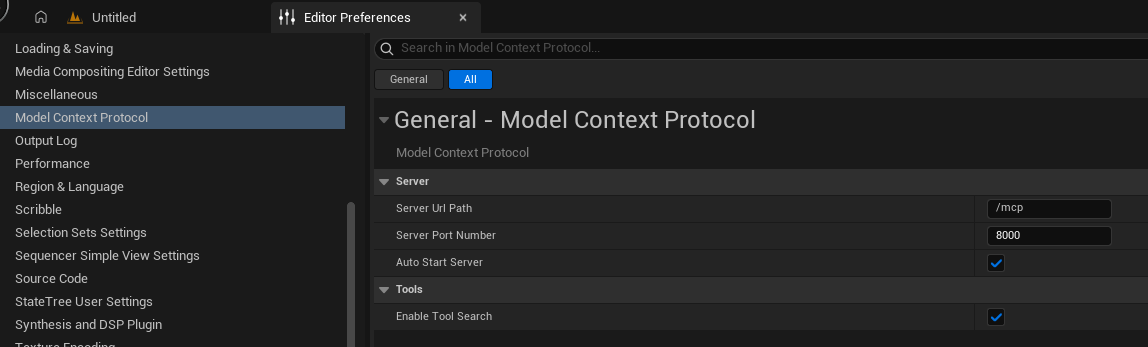
Open Edit > Editor Preferences (or Project Settings), then navigate to Plugins > Model Context Protocol.
Ensure you are signed into your OKO account in the Editor via the main OKO menu.
3. Connecting an AI Client Interface
The OKO MCP Tools plugin provides OKO-specific tools through Unreal Engine’s MCP server. It does not run a separate MCP server, so the Unreal MCP tooling must also be available.
Install your AI Client of choice. Your licence will determine how many AI tokens you can use.
Open the Unreal console and run these commands for each editor session:
Replace <ClientName> with a client supported by Unreal’s config generator, such as VSCode, ClaudeCode, or Gemini. The command creates or updates the MCP configuration for that client.
Start your AI client from the Unreal project root: the folder containing the .uproject file. This lets it find the project-level MCP configuration. Do not launch it from inside the plugin’s .uplugin folder.
If prompted, trust the project and approve the Unreal MCP server. Confirm the server connects and the OKO tools are listed.
For a first check, ask the client to run OKOPreflight and report the results without making changes.
Available MCP Tools
When the OKOMcpTools module starts, its toolset is automatically registered with Unreal's ToolsetRegistry and exposed to connected AI agents. Below is the full inventory of tools available:
Preflight & Operations
Tool Name
Description
OKOPreflight
Validates Editor state, Engine version, login status, and space context prior to executing workflows.
OKOGetOperation
Retrieves the status or final output of an asynchronous operation using its OperationId.
Space Management
Tool Name
Description
OKOCreateSpace
Creates a new OKO space with a specified name, description, and access attributes.
OKOEnterSpace
Enters a specified OKO space by ID in the active Editor world.
OKOExitSpace
Leaves the currently active OKO space.
OKOListSpaces
Asynchronously retrieves all spaces owned by or shared with the user.
Entity Management
Tool Name
Description
OKOCreateEntity
Creates a new OKO entity at a given transform within the current space.
OKOListEntities
Lists all active entities in the current space and their attached components.
OKOGetEntityState
Retrieves an entity's ID, name, transform, lock state, components, and readable properties.
OKOMoveEntity
Updates an entity’s transform and propagates changes to the OKO space.
OKODeleteEntity
Removes an entity from the active space.
Component Management
Tool Name
Description
OKOCreateComponent
Adds a specified component type to an entity with optional JSON initial properties.
OKOGetComponentProperties
Returns all readable properties for a named component as JSON.
OKOSetComponentProperty
Updates a Blueprint-exposed property on a component using JSON values.
OKODeleteComponent
Removes a component from an entity.
OKODescribeComponentSchema
Generates a JSON schema detailing available properties for a component type.
Asset & Asset Collection Management
Tool Name
Description
OKOSetComponentAsset
Assigns an existing asset collection to a compatible component.
OKOCreateAssetCollection
Creates an asset collection for a specific asset type in the active space.
OKOGetAssetCollections
Retrieves existing asset collections (asynchronous via operation polling).
OKOUploadAsset
Creates an asset record and uploads a local project file to a collection.
High-Level Placement Shortcuts
Placement tools streamline multi-step operations into a single command for common workflows (creating entity, adding component, uploading local file/URL, and binding asset collection):
Tool Name
Description
OKOPlaceImage
Creates an entity with an Image component, uploads a local image file, and links it.
OKOPlaceModel
Creates an entity with a Static Model component, uploads a local GLB/GLTF file, and links it.
OKOPlaceAudio
Creates an entity with an Audio component, uploads a local audio file, and links it.
OKOPlaceVideo
Creates an entity with a Video Player component configured with URL, autoplay, and loop settings.
OKOPlaceText
Creates an entity with a Text component configured with custom text, width, and height.
Unreal Editor Actor Integration
Tool Name
Description
UESpawnActor
Spawns a standard Unreal actor (supports StaticMeshActor with optional default cube).
UEFindActor
Finds an Editor actor by name/label and returns its path.
OKOCreateEntityFromActor
Converts a compatible Unreal Editor actor into a live OKO space entity.
Usage Workflow Example
Below is an example prompt sequence you can paste into your connected AI client to test and run automated OKO operations inside Unreal Engine.
We actually use this prompt to test that MCP is working!
Sample Prompt Script
Run the OKO MCP validation using the available OKO tools.

## Preconditions
1. Confirm that the OKO MCP toolset is available.
2. Run `OKOPreflight`.
3. Confirm that preflight succeeds.
4. Stop and report the error if preflight fails.

## Test sequence
1. Create a new uniquely named space with `OKOCreateSpace`.
2. Poll the returned operation using `OKOGetOperation` until it reaches a terminal state.
3. Stop and report the error if the operation fails.
4. Enter the created space with `OKOEnterSpace`.
5. Poll the returned operation using `OKOGetOperation` until it reaches a terminal state.
6. Stop and report the error if the operation fails.
7. List the current entities with `OKOListEntities`.
8. Create an entity at Location: (X=300, Y=-600, Z=0) with `OKOCreateEntity`.
9. Poll the returned operation until it completes.
10. Create a component on the entity with `OKOCreateComponent`.
11. Poll the returned operation until it completes.
12. Place text at Location: (X=300, Y=-300, Z=0) using `OKOPlaceText`.
13. Poll the returned operation until it completes.
14. Place an image at Location: (X=300, Y=0, Z=0) using `OKOPlaceImage`.
15. Poll the returned operation until it completes.
16. Place a model at Location: (X=300, Y=300, Z=0) using `OKOPlaceModel`.
17. Poll the returned operation until it completes.
18. Place a video at Location: (X=300, Y=600, Z=0) using `OKOPlaceVideo`.
19. Poll the returned operation until it completes.
20. List the entities again with `OKOListEntities` and verify that all expected entities exist.
21. Do NOT exit or delete the space—leave the space open and active so the user can inspect all created objects in the editor viewport and outliner.
Important Rules & Constraints
When prompting an AI assistant to interact with OKOMcpTools, keep the following constraints in mind:
File Locations: Any local assets uploaded using OKOUploadAsset, OKOPlaceImage, OKOPlaceModel, or OKOPlaceAudio must be located beneath the active Unreal project directory.
Explicit Transforms: Always instruct the AI to provide explicit Location offsets (e.g., X=300, Y=-600, Z=0). Without distinct offsets, created entities may overlap or stack at (0,0,0).
Asynchronous Handling: Every operation returning an OperationId must be polled with OKOGetOperation until completed before moving to dependent actions.
Actor Spawning:UESpawnActor currently supports StaticMeshActor types.