
FAQ integrated graphics
This article will guide you through optimizing your graphics settings to ensure OKO runs smoothly.
Below are the instructions for Windows 11. Instructions for Windows 10 can be found here.
Note:
OKO is only supported on Chromium-based browsers such as Microsoft Edge, Google Chrome, DuckDuckGo, Brave, etc.
OKO benefits from using a dedicated graphics processor if your computer has one. You can verify and update your settings by following these instructions
Windows 11 instructions
Open Windows Settings from the Start Menu.
Navigate to System → Display (Related Settings section) → Graphics.
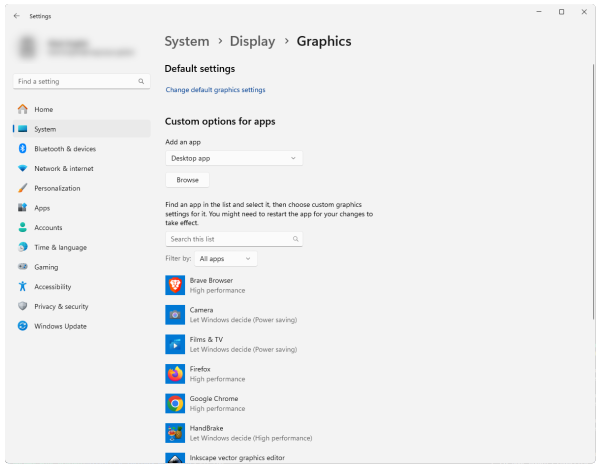
Select your browser from the list of applications.
If your browser is not in the list, use the Browse button to locate it.Click Options and then select High Performance from the list of settings. If the option for High Performance has the same device name as the option for Power saving, then your computer is probably not equipped with a dedicated graphics processor. You can confirm this by following the instructions here.
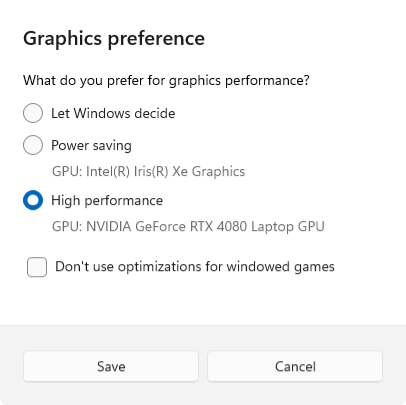
Restart your browser to ensure the changes are applied. If you are unsure, restart your computer.
If you believe you have a dedicated graphics processor and feel your browser is not making use of it you can follow the additional instructions here.
Windows 10 instructions

If you have an AMD GPU, we will be updating this page regularly, so please check back soon.
If you have an Nvidia GPU on Windows, follow the instructions below.
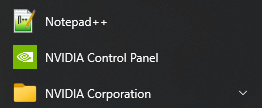
Open the Start Menu and find Nvidia Control Panel in the list of applications.
Select Manage 3D settings in the left-hand pane.
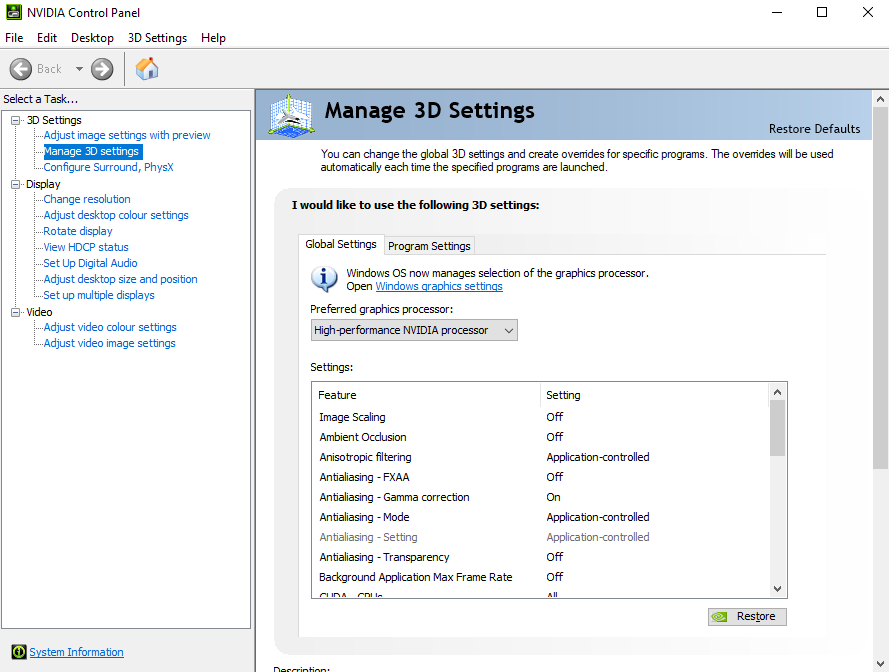
Under the preferred graphics processor, choose which setting you prefer.
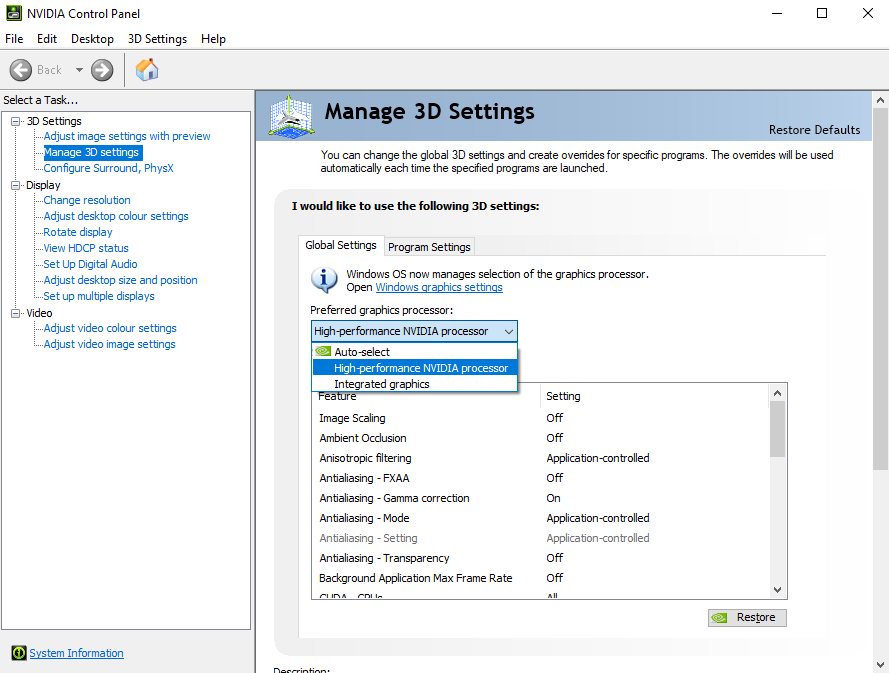
Confirming graphics processor selection
You can verify which graphics processor is being used via the Windows Task Manager.
Open Windows Task Manager and select the Performance section. Ensure you see at least TWO GPU entries. The second entry is generally the high-performance graphics processor and should be the one used for OKO. If you only see one entry, then you don’t have a dedicated graphics processor to select.
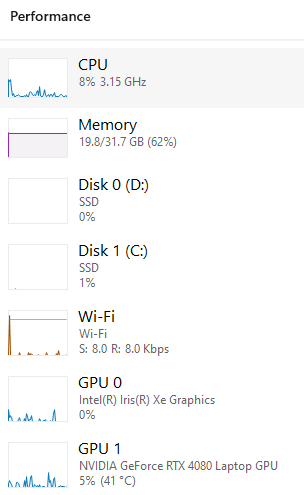
Ensure you have OKO running and visualising a 3D space. Check that the browser window is not minimised before proceeding.
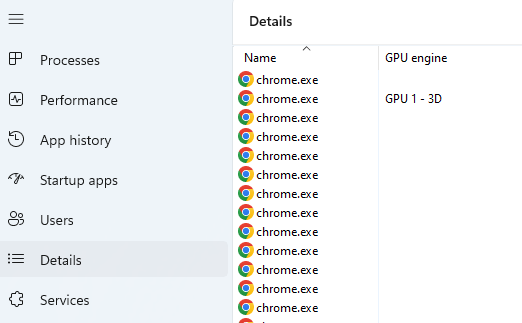
In Windows Task Manager, select the Details section.
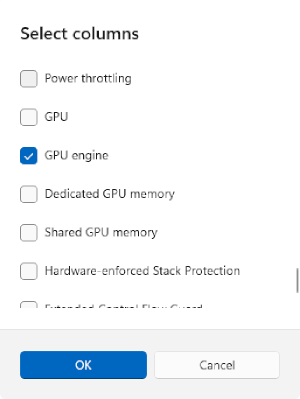
Add the GPU engine column by right-clicking the column header, select Columns... and select the GPU engine option in the list.
Verify that GPU 1 - 3D appears next to the Chrome process running OKO.
If you have verified that all of the suggestions above are correctly configured, and the correct graphics processor is still not being used, you can try these additional steps.
Ensure you have the latest graphics drivers installed and perform a clean installation if possible. Instructions are available on your graphics card manufacturer's website
If you have an Nvidia graphics card, then reinstall the Nvidia Control Panel and verify your browser is correctly assigned to the High Performance graphics processor.
Ensure that your browser is up to date by following the instructions on the browser manufacturer's website.