
Screen sharing on Web
OKO Web Client 2.66.1 CSP 6.9.1
Screen sharing lets you share your browser tab, a window, or your entire screen with other users within the same space, optionally including audio. Other users will see the contents of your screen on the screen-sharing component within the space.
This feature is only available to spaces owned by pro-tier users.

Users cannot interact with the screen or control your device through this mechanism – it's one-way only.
To get started with screen sharing as a creator, please follow these steps.
Create a screen-sharing component
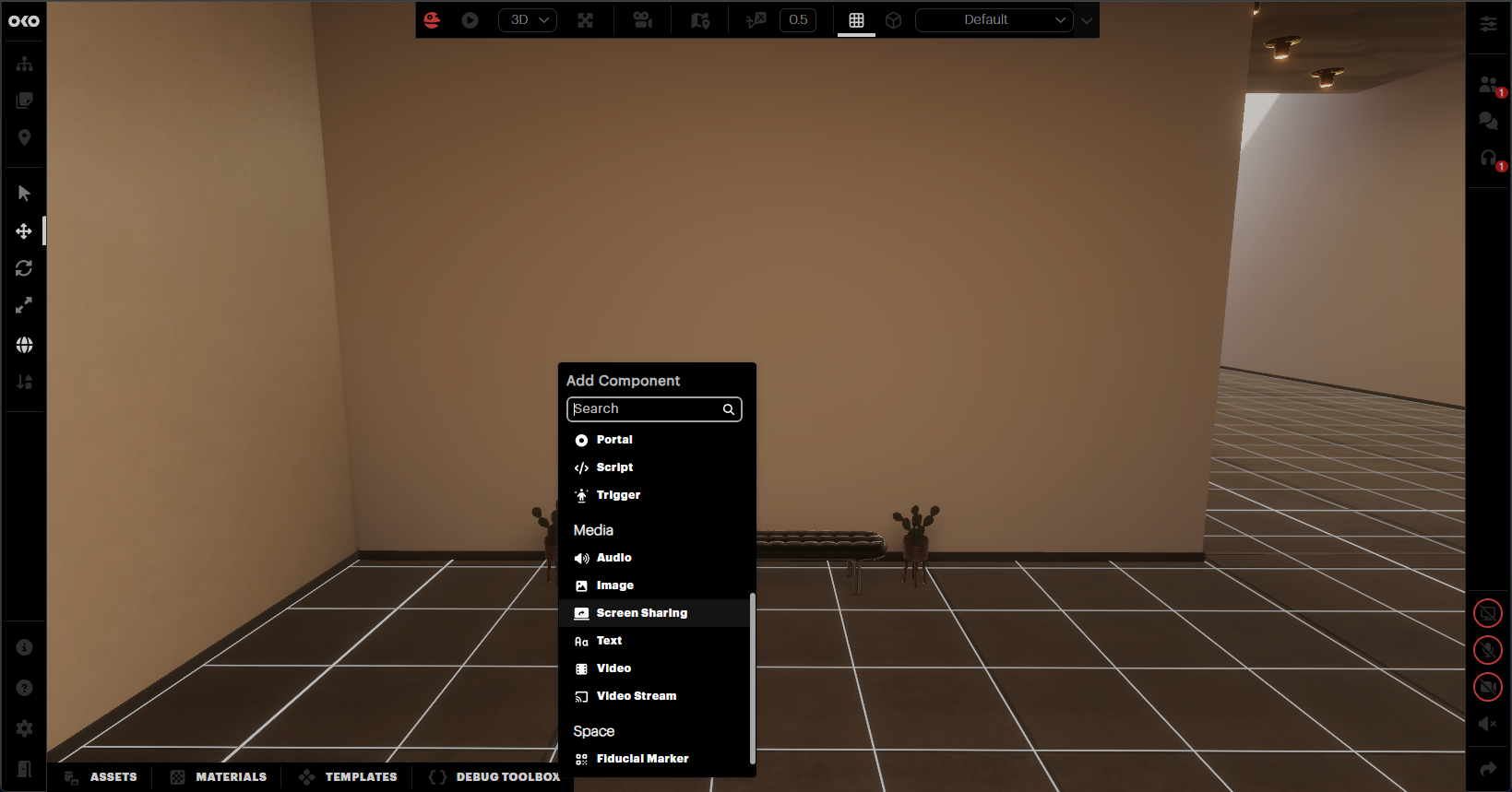
Add a screen-sharing component to your space. The easiest way is to right-click roughly where you want it and select “Screen-Sharing” from the context menu that appears.
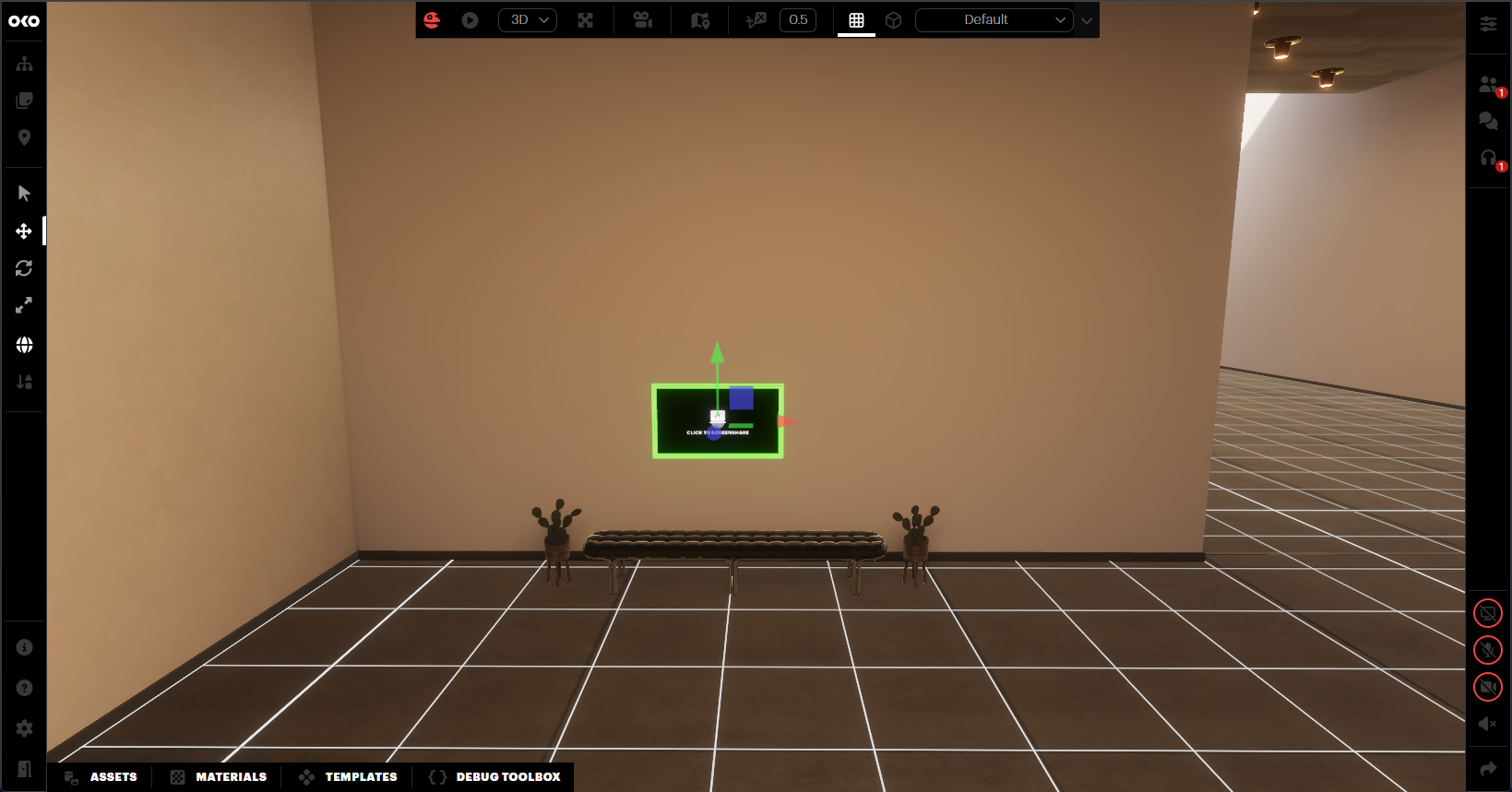
A screen-sharing component is then added to the space. Please position and resize this to your preferences.
Customising Your Screen Share Component
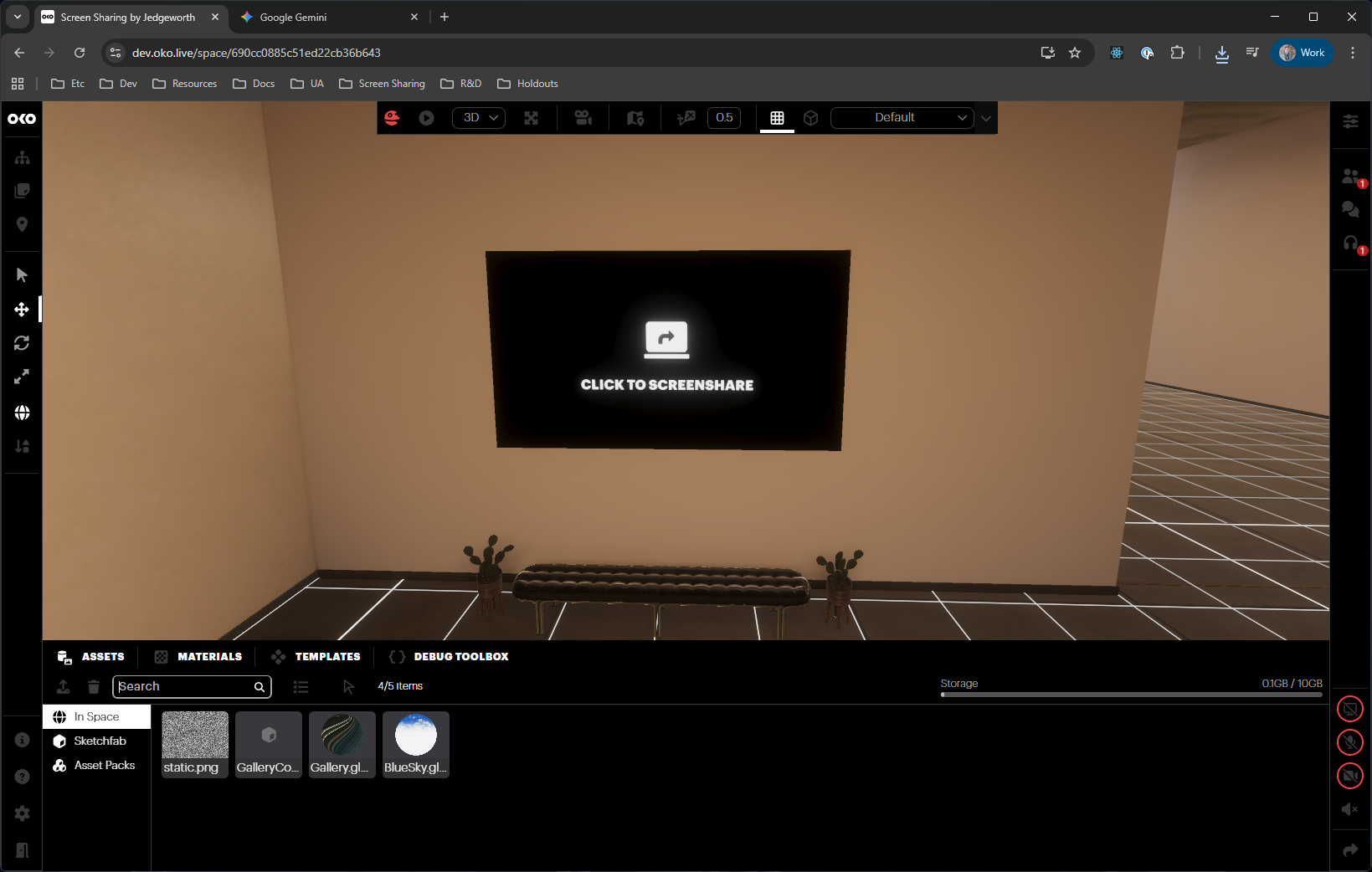
You may change the default graphic of the screen-sharing surface to any image. To do this, open the assets panel at the bottom of the screen and drag your image into this section. This will upload your image to the space as an asset.
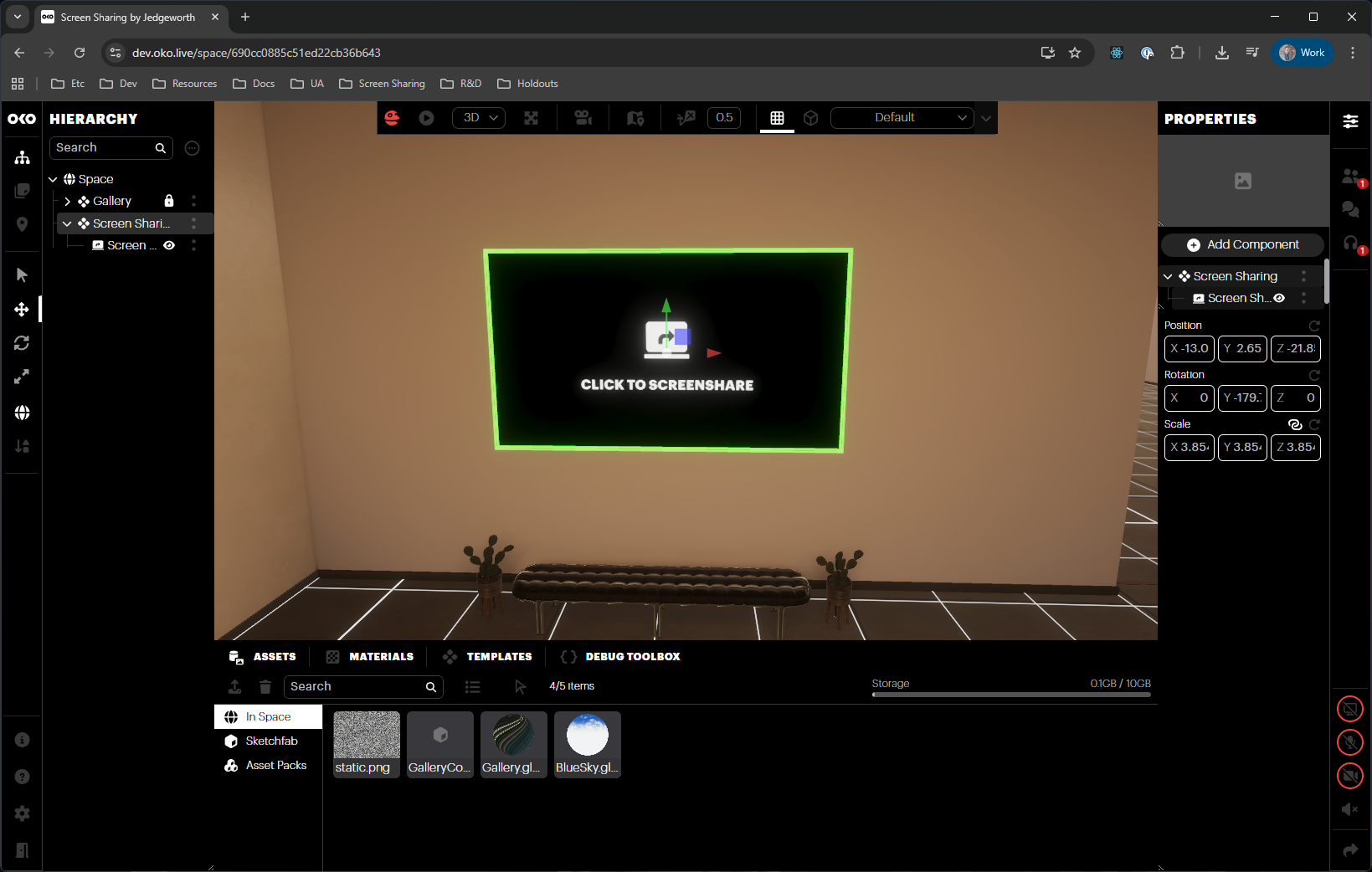
Open the hierarchy by clicking the icon in the top left of the screen. One of the entries listed in the hierarchy will be the screen-sharing component – click this to select the entity.
In the properties panel on the right, you will see more details of this entity, including its components - one of these components is the “Screen Sharing” component. Click this to see more options relevant to this component.
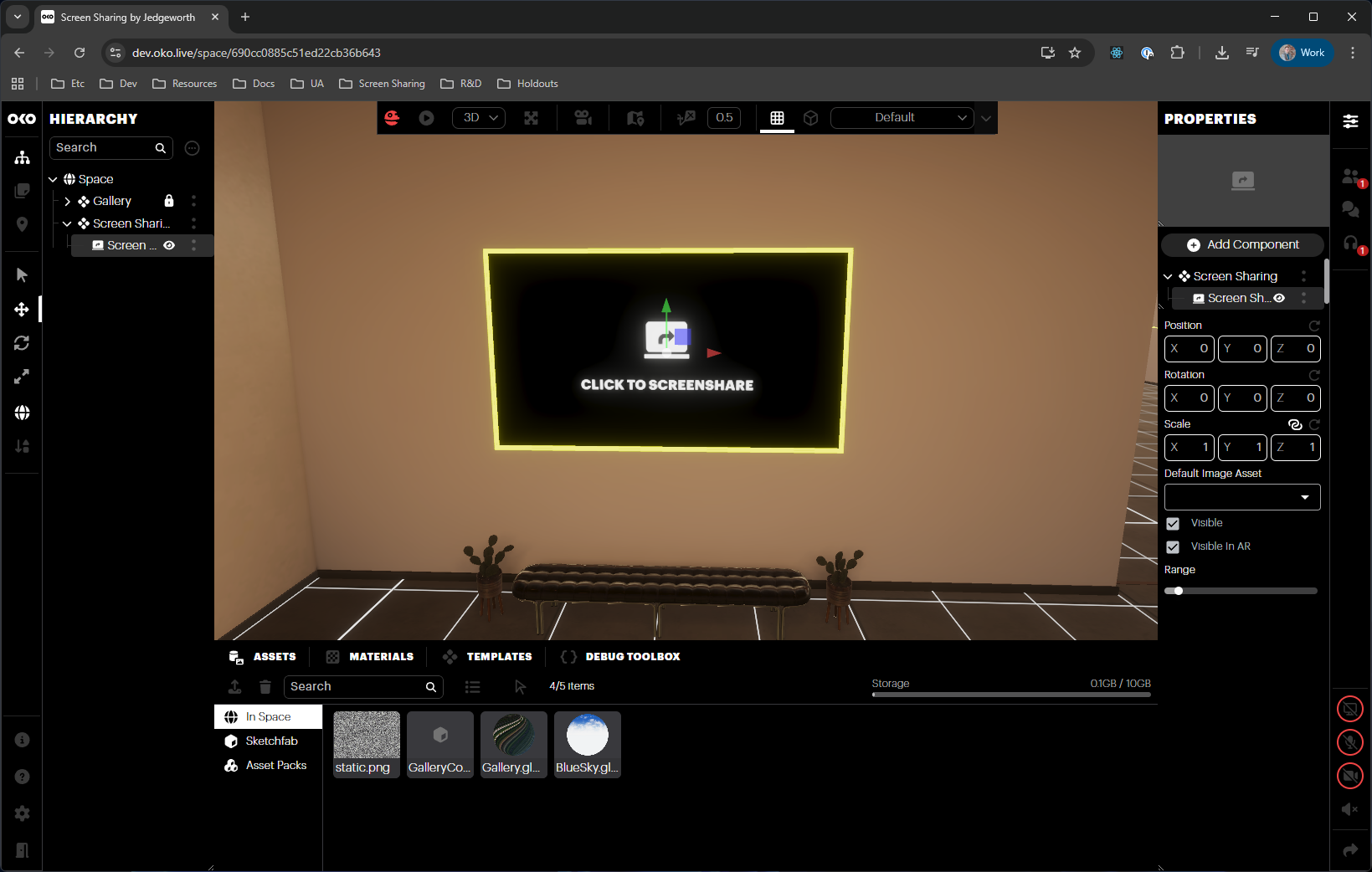
Note that the component in space will now be highlighted in yellow to indicate the component is selected (as opposed to the entity). You will see additional options in the properties panel for “Default Image Asset”, “Visible”, “Visible in AR”, and “Range”.
Click the drop-down for “Default Image Asset” and select the image asset you wish to use.
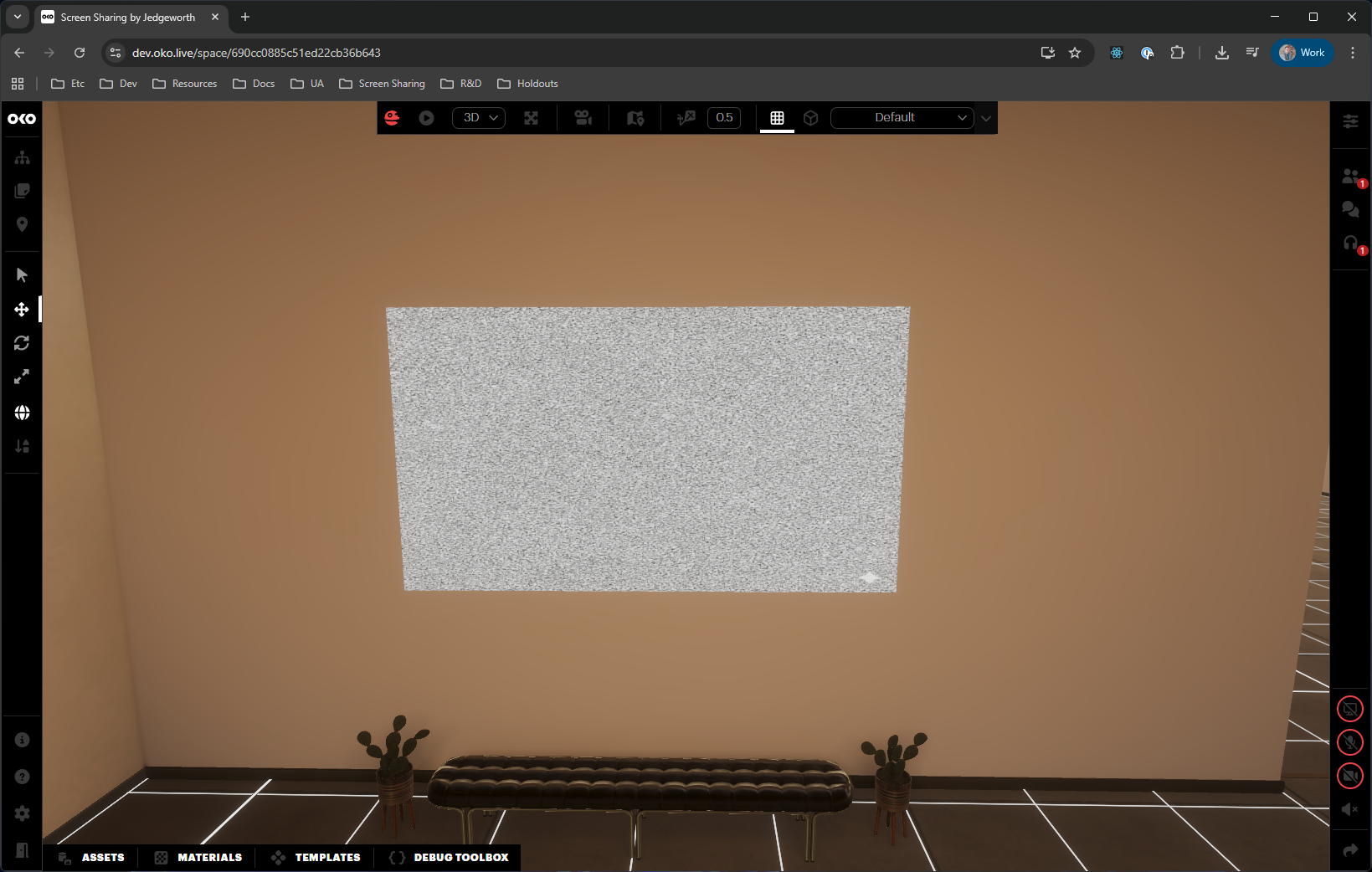
Your image asset is now the default for the screen sharing component.
Note that while the default graphic is changed, the functionality remains the same – any user can click this to start sharing their screen to it.
Sharing your screen
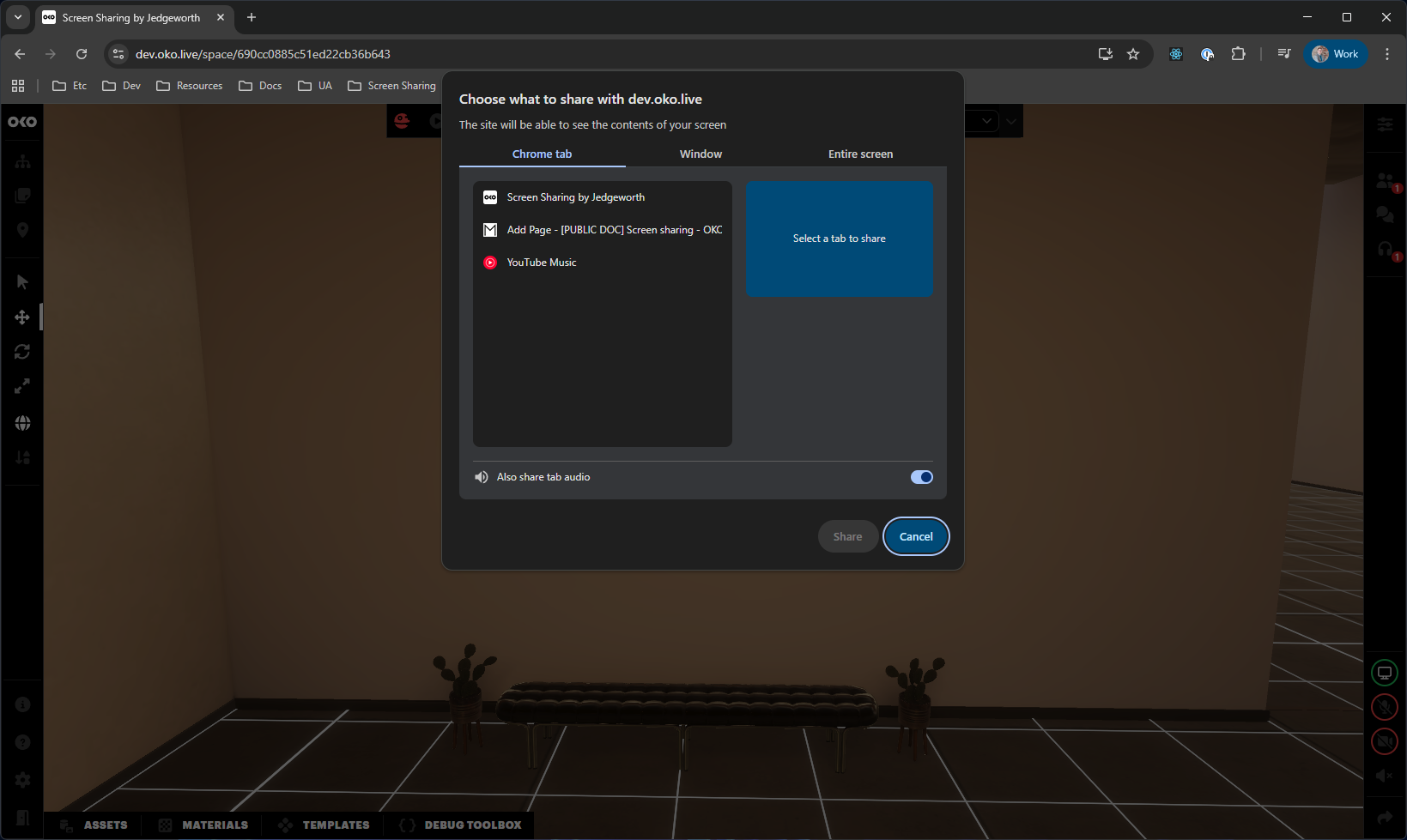
All users in a space (creators and viewers) are able to share their screen. To begin sharing, click the component in space, and you will see a dialog which will prompt you to choose what to share. You can choose between browser tabs, windows, or entire screens.
Optionally, you can share your audio using the toggle option just above the share and cancel buttons.
Once your intended screen is selected, please click “Share” to begin sharing to the component.
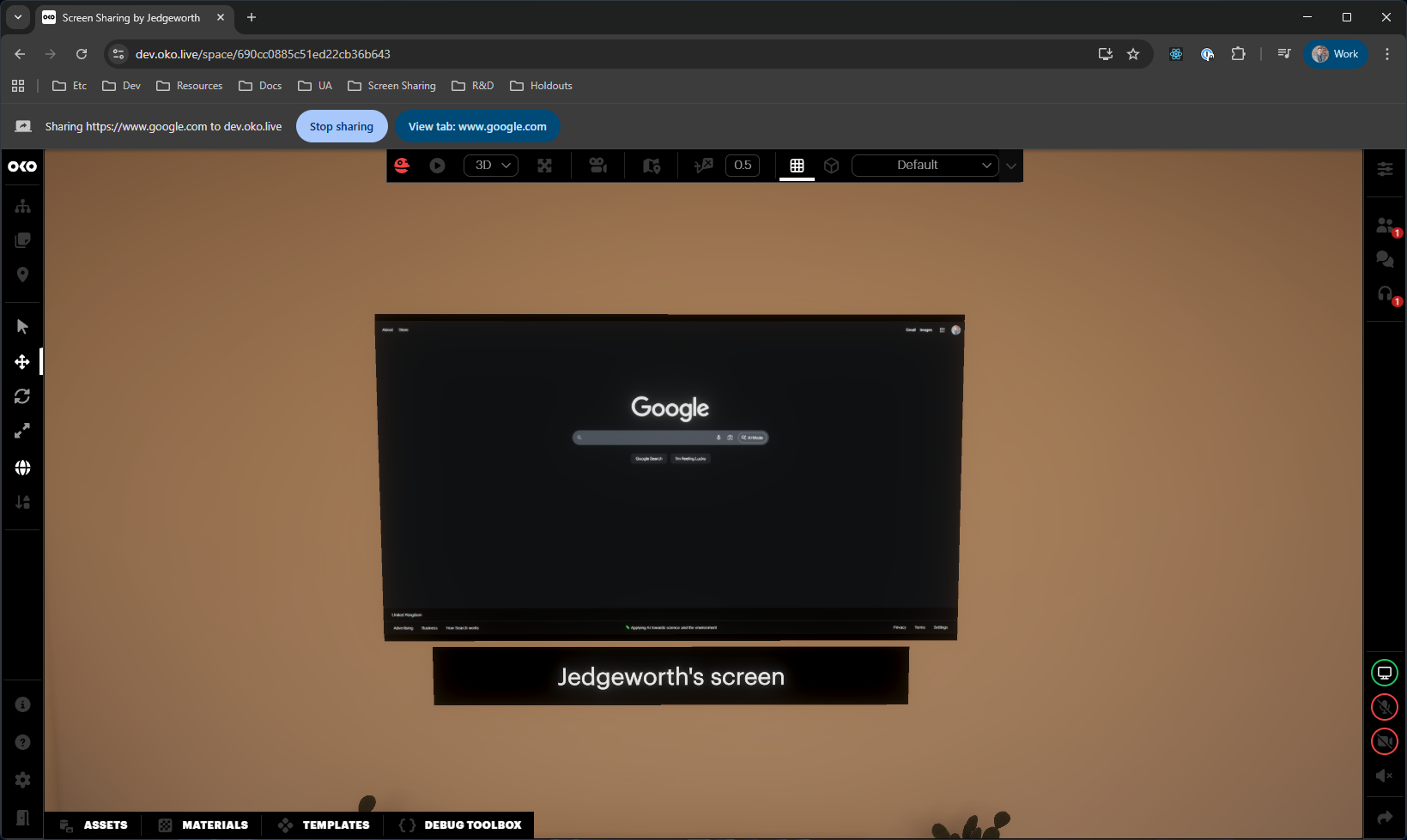
You’ll now see your screen content on the component. Your in-space OKO username will show underneath the visible panel to indicate to all users whose screen is being shared. You'll also see a green outline around the screen-sharing indicator in the bottom right of your OKO window to confirm the session is active.
Finishing your screen sharing session
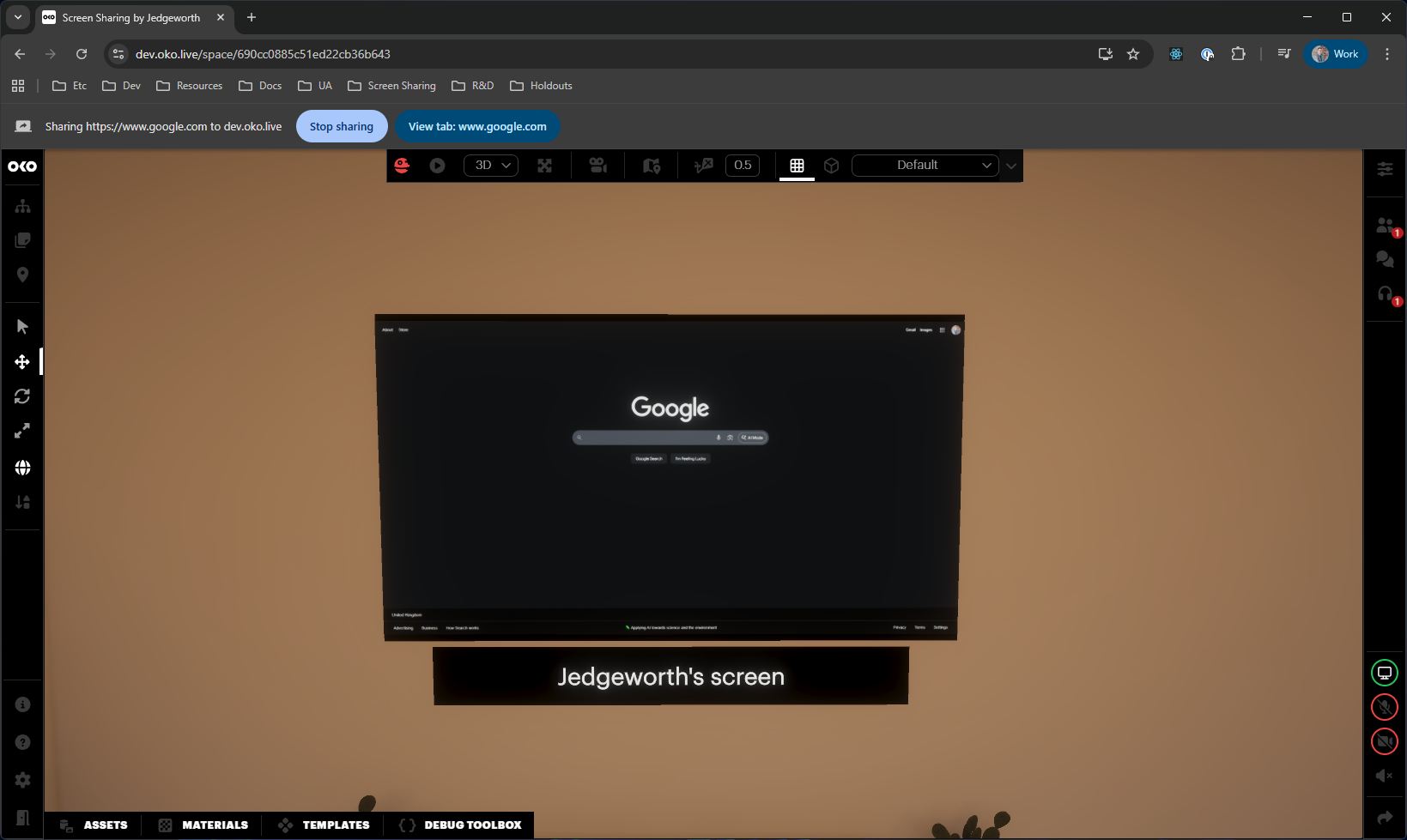
While sharing, you will now have an additional toolbar at the top of the browser window, which lets you either “Stop Sharing” or “View tab”. Clicking “Stop Sharing” will finish the screen-sharing session.
Another method is to click the screen-sharing status indicator in the bottom right of your window.
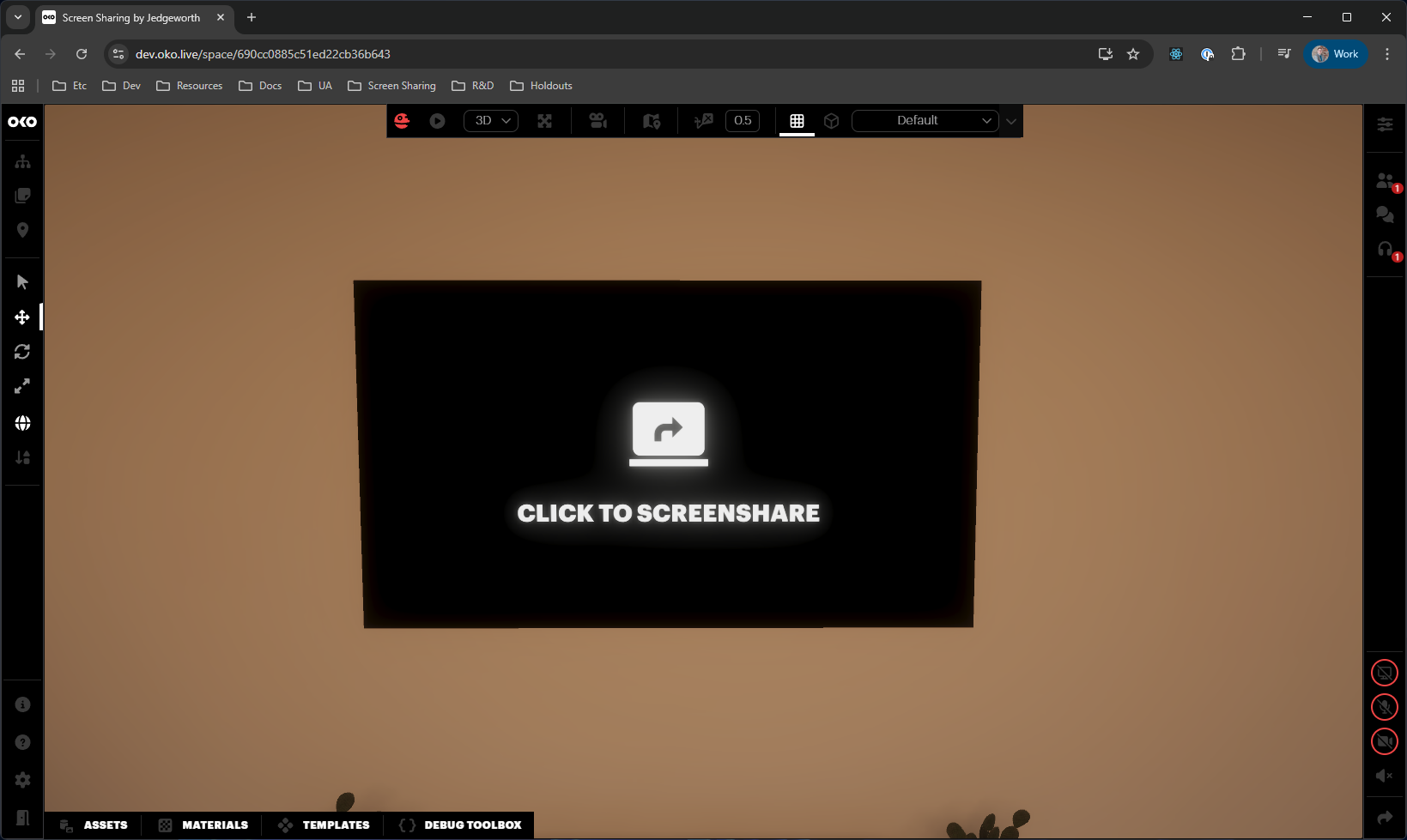
The screen-sharing status has now finished. The status indicator in the bottom right will now be outlined in red to confirm the session is no longer casting, and the component in space will return to its default “Click to Screenshare” graphic.
Additionally, the browser will hide its sharing toolbar.
Further Considerations
You may have numerous screen-sharing surfaces in your space, all operating at the same time.
The same user may share different screens to different screen-sharing components within the space at the same time (such as a dual-monitor setup or having different applications visible in the space at the same time).
You may use the in-space communications panel to share webcam and microphone audio at the same time as screen sharing.
If the screen-sharing user loses connection or exits the space, the session will automatically close. Likewise, if users join or reconnect to the space while screen sharing is in progress, they will automatically see the screen sharing without further interaction.