
OKO Web Client 4.7.1 - CSP 6.36.0
This article will guide you through the fundamentals of the Map Mode and Siteview interfaces.
Map Mode allows you to view a top-down perspective of your space. If that space is geolocated, then that view will be positioned on a map at the correct location. To create a geolocated space, please refer to Creating and managing spaces
Siteview allows you to view all of the geolocated spaces that you own or have access to on a map of the Earth.
Instructions
Map Mode
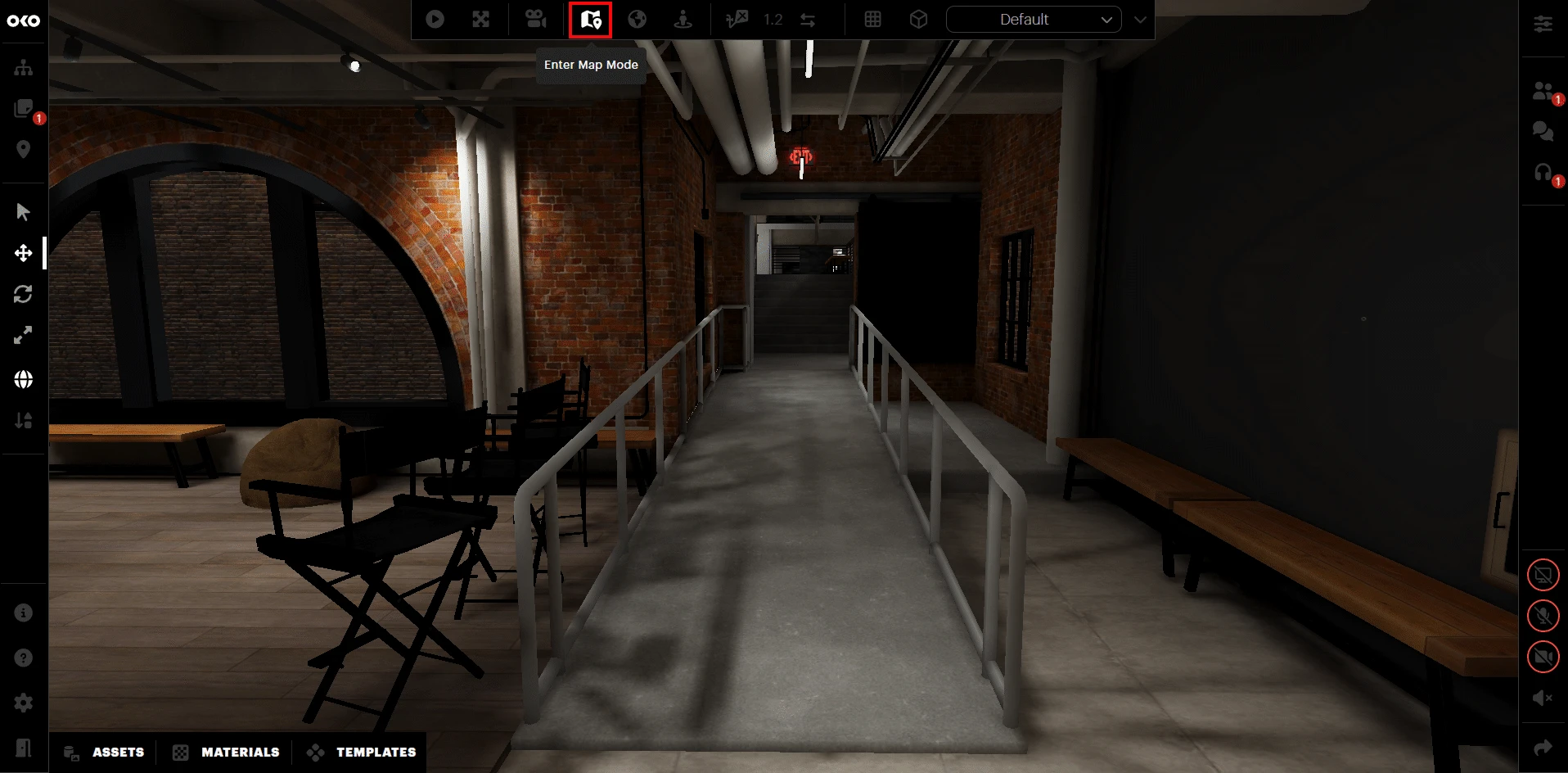
To enter Map Mode, you can either press M on the keyboard or select Enter Map Mode on the central toolbar, as shown below.
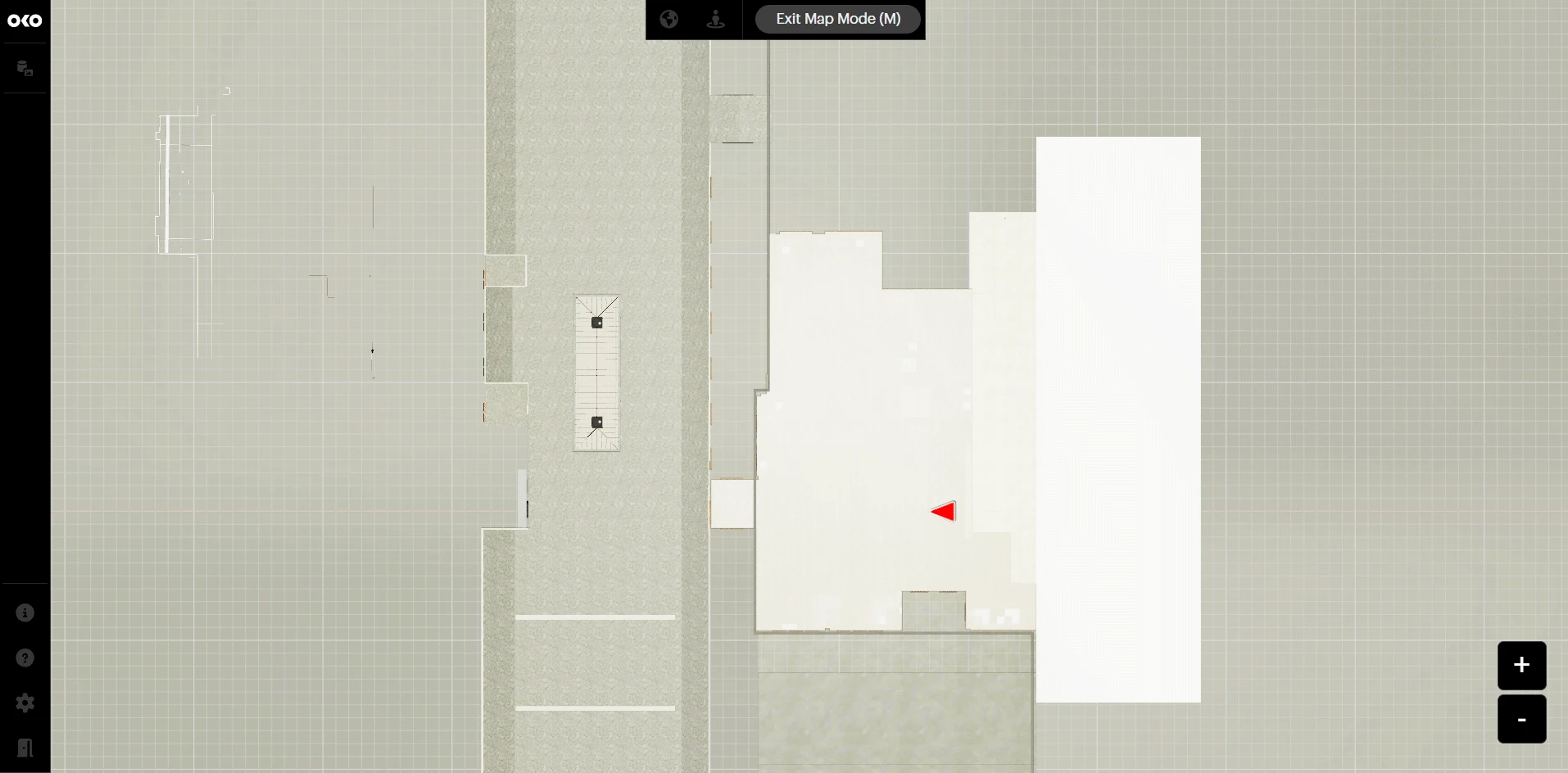
Entering Map Mode will show a top-down view of the space.
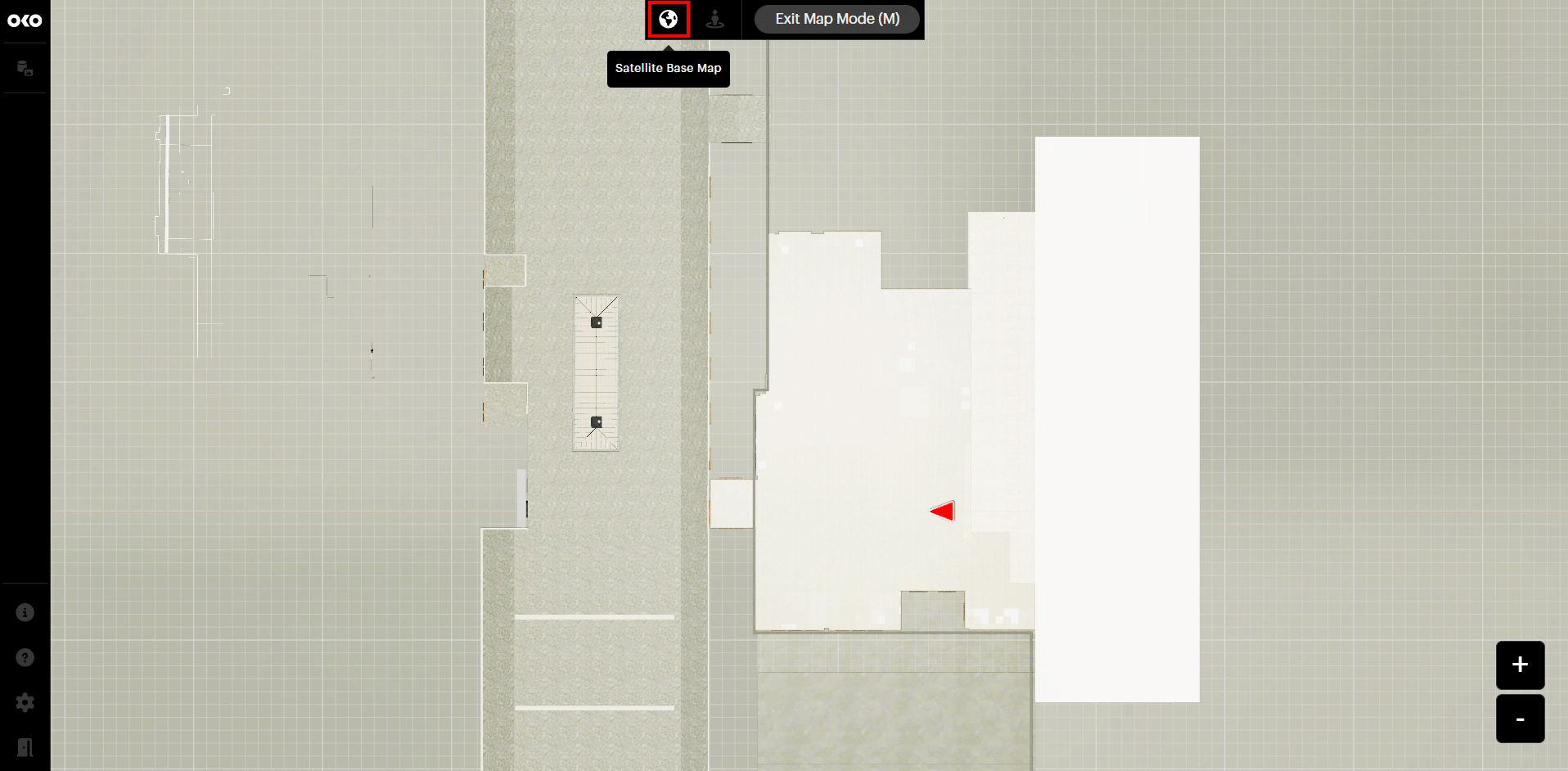
If the space is geolocated, then the Satellite Base Map option will be available in the central toolbar, as shown below. This can also be enabled from outside Map Mode.
Enabling this option will show your geolocated space on the map.
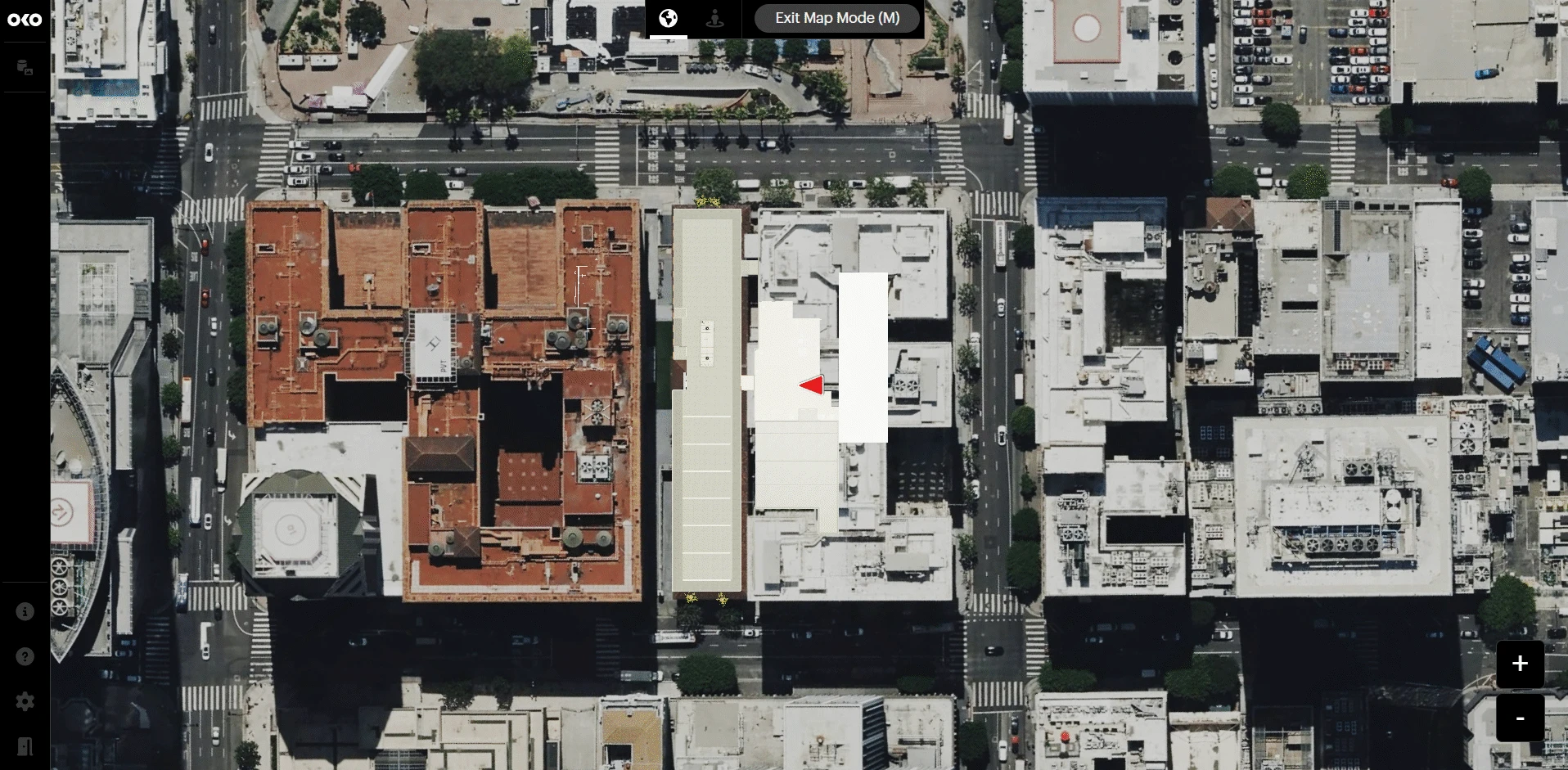
To navigate the map, you can either use the left or right mouse buttons to pan your view, or use the following commands.
|
Shift + Q |
Down |
|
Shift + E |
Up |
|
Shift + A |
Left |
|
Shift + D |
Right |
Please note that if zoomed out, then navigation around the map can be slow.
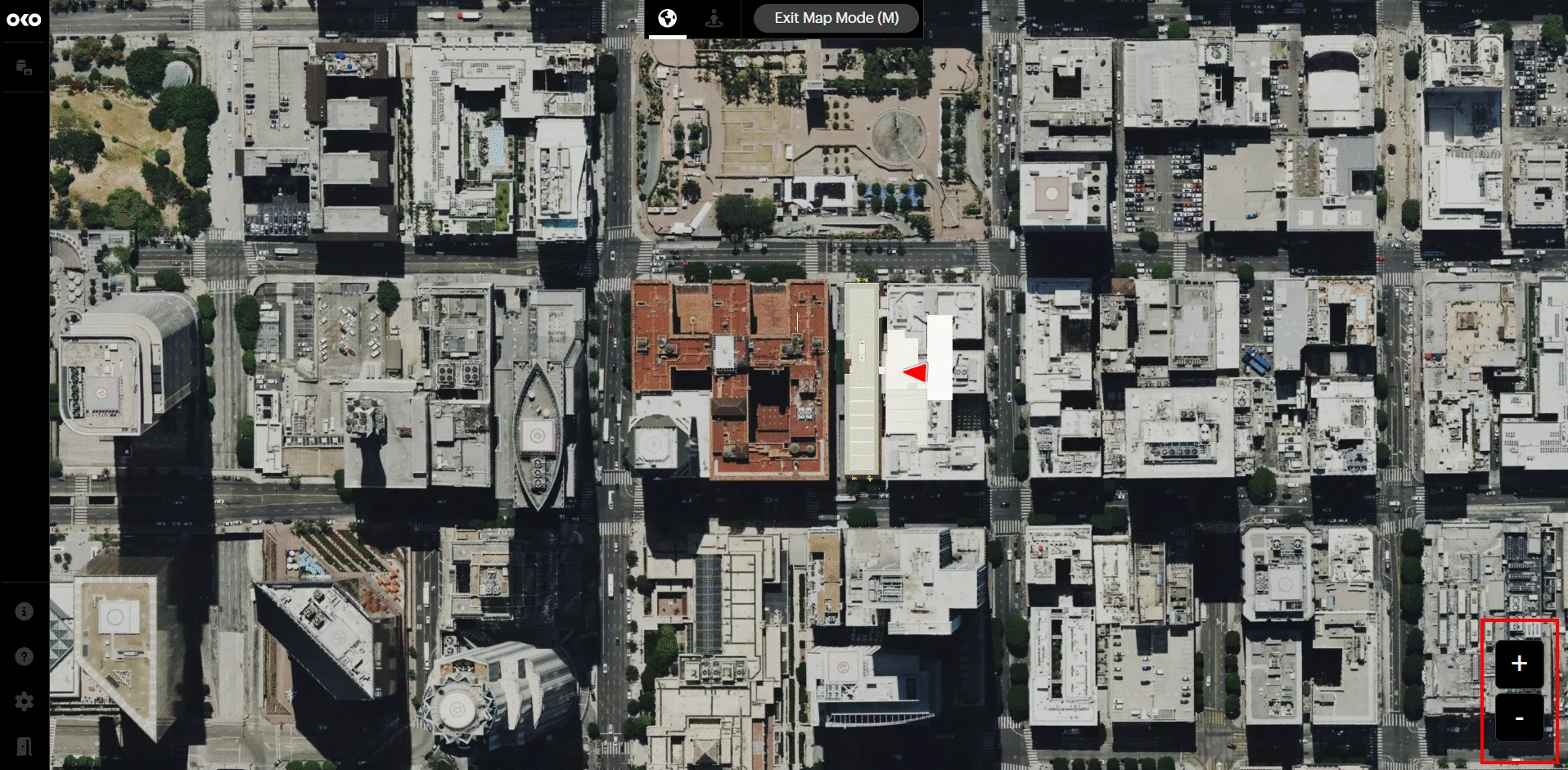
To zoom in and out, use the + and - buttons found in the bottom-right corner.
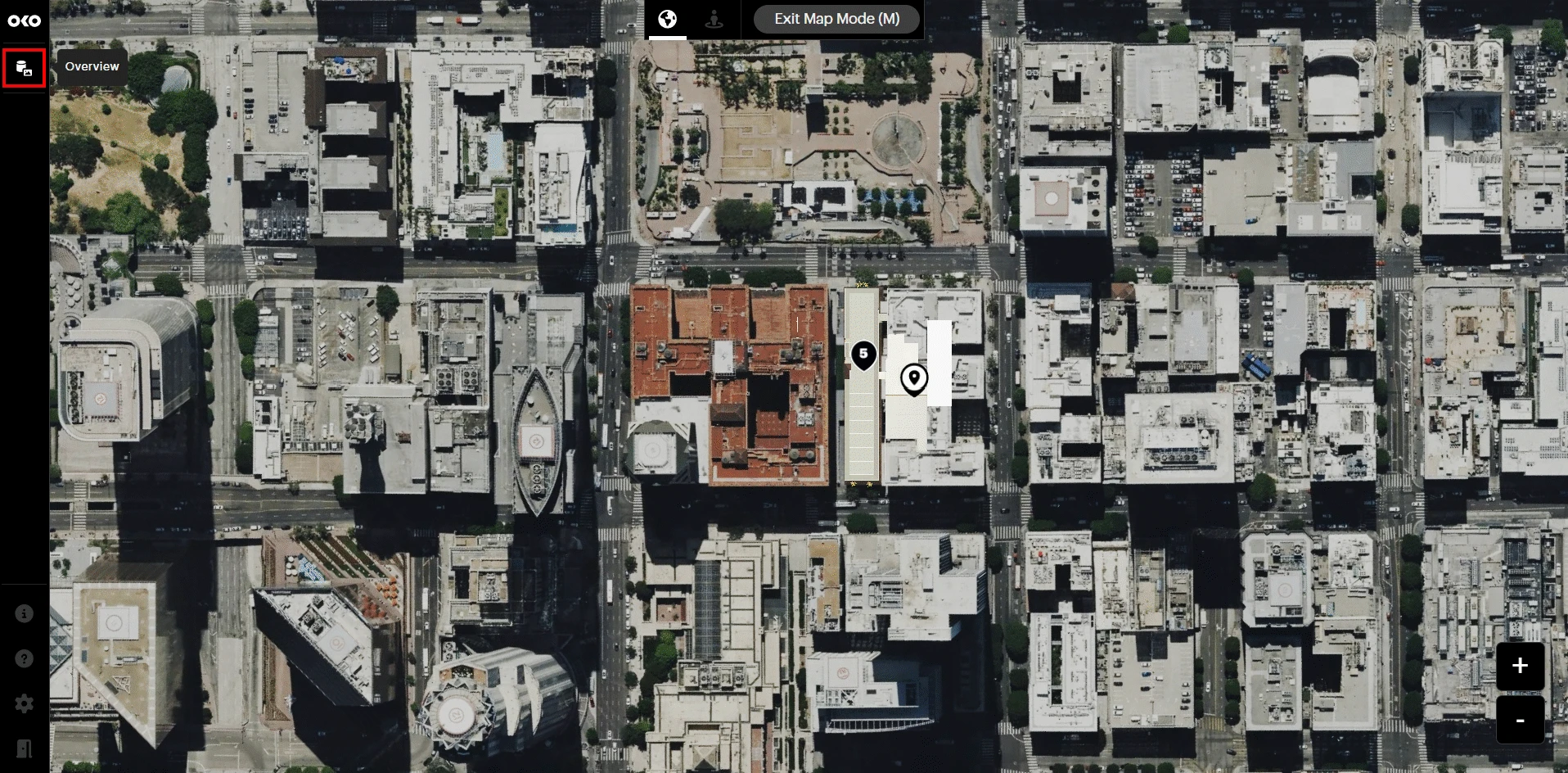
In the left toolbar, the Overview button will open the Overview panel.
The Overview panel lists all the components and comments present in the space.
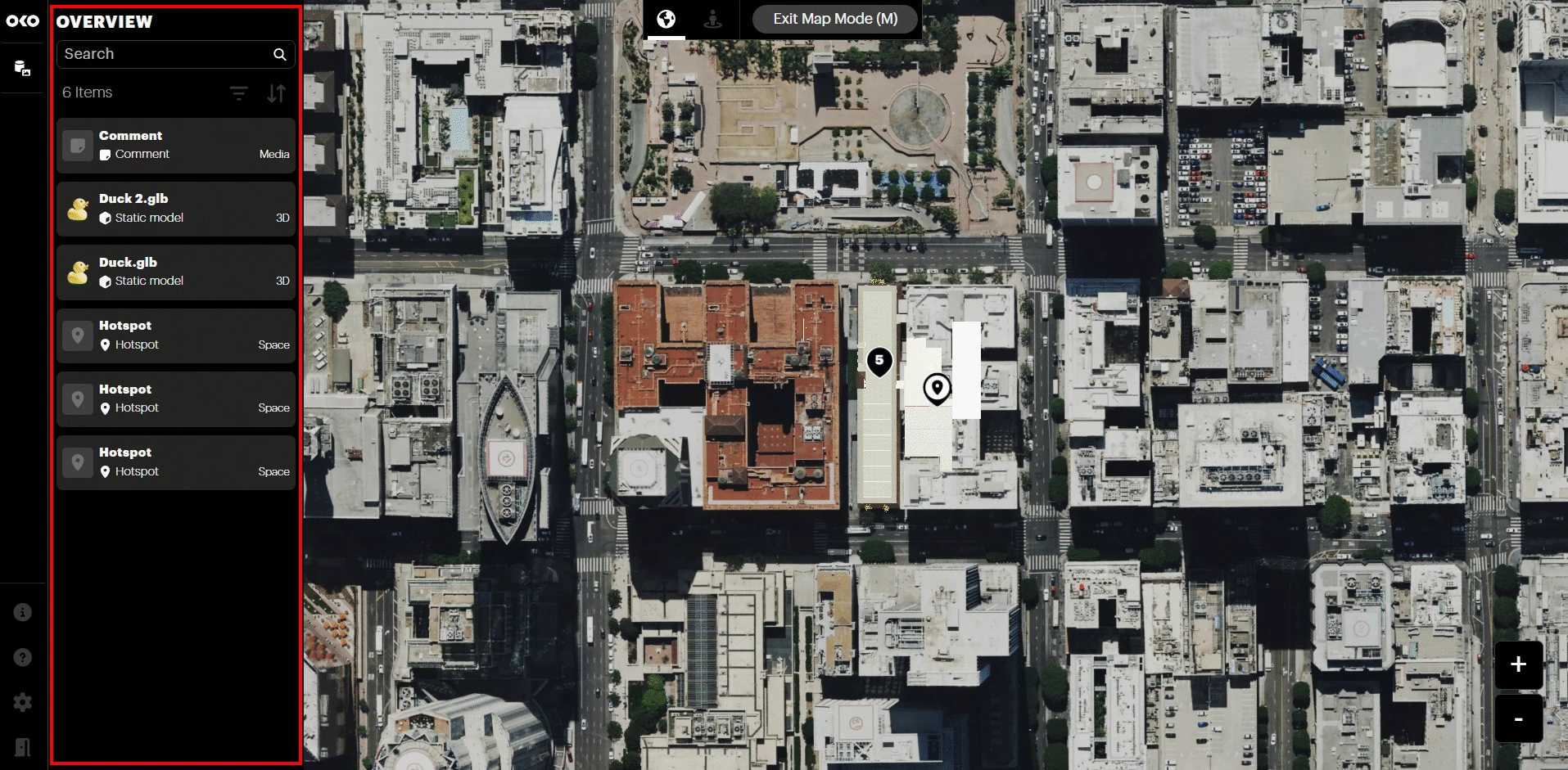
Components and comments are also represented by pins in the Viewport. The position of your user avatar before entering map mode is shown as a red arrow.
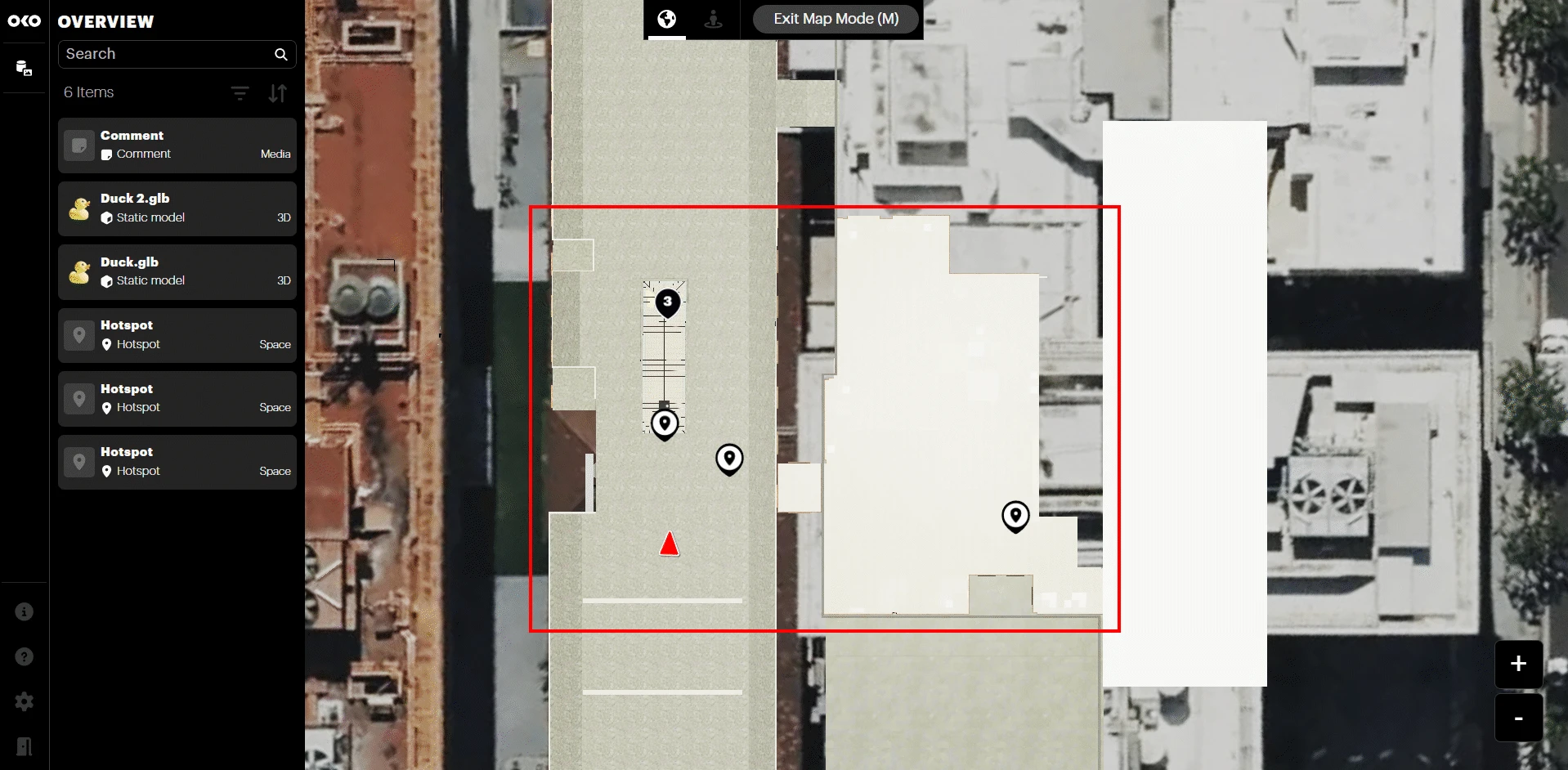
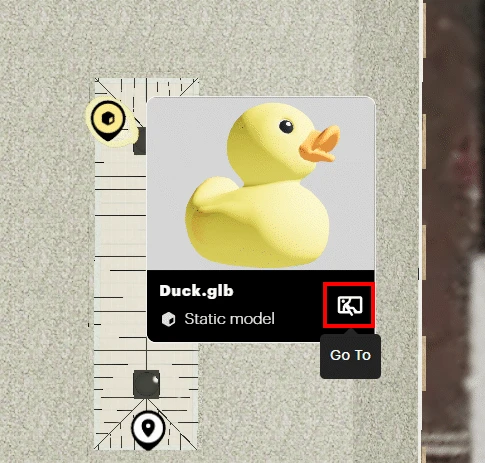
Clicking a pin in the Viewport selects the object and displays an information panel with its name, type, and thumbnail (if available). Note that selecting an object in the Viewport by clicking a pin will also select it in the Overview panel list, and vice versa.
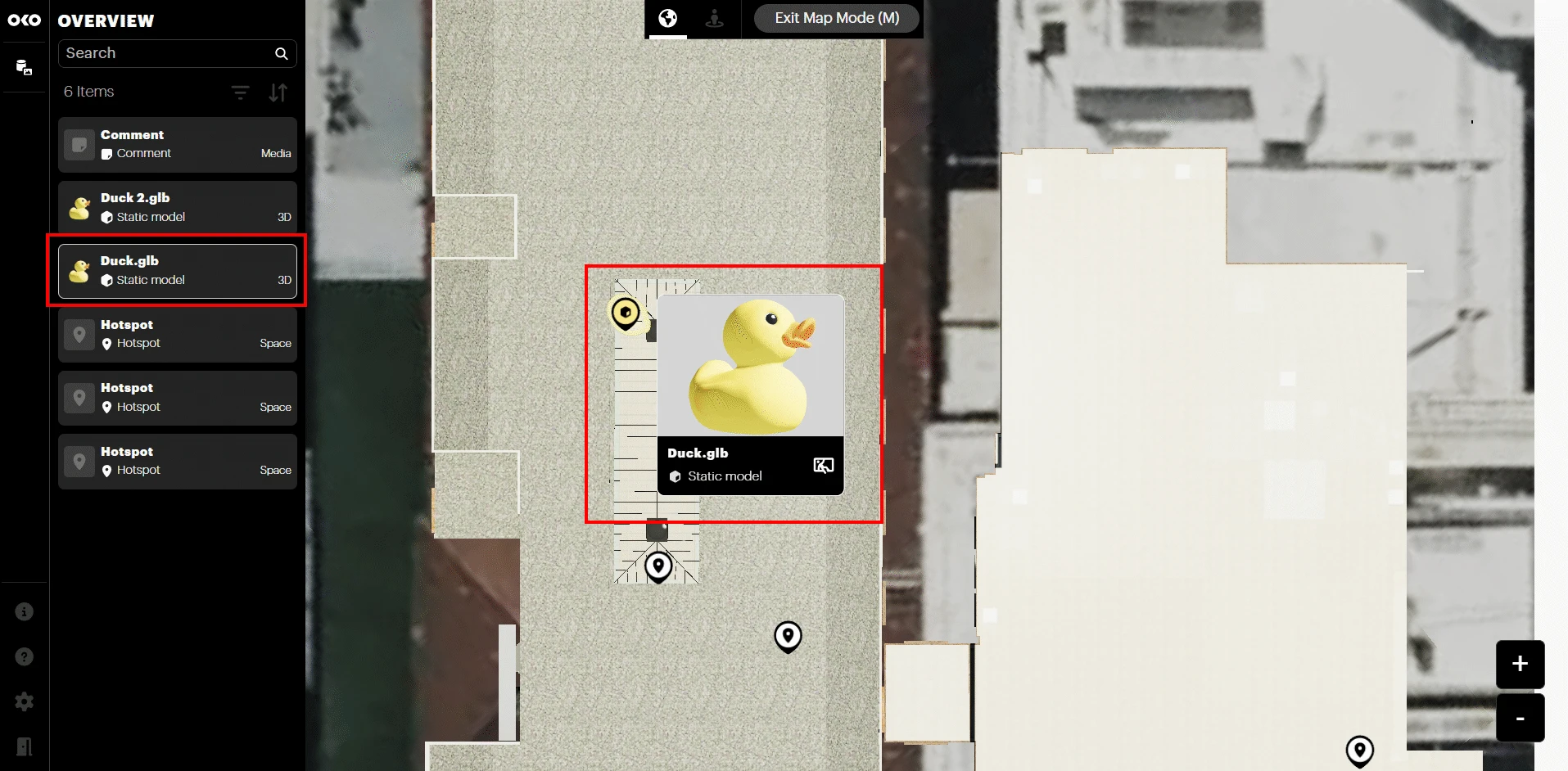
The information panel also includes a Go To button, which will exit Map Mode and take you back to the 3D view, centered on the object.

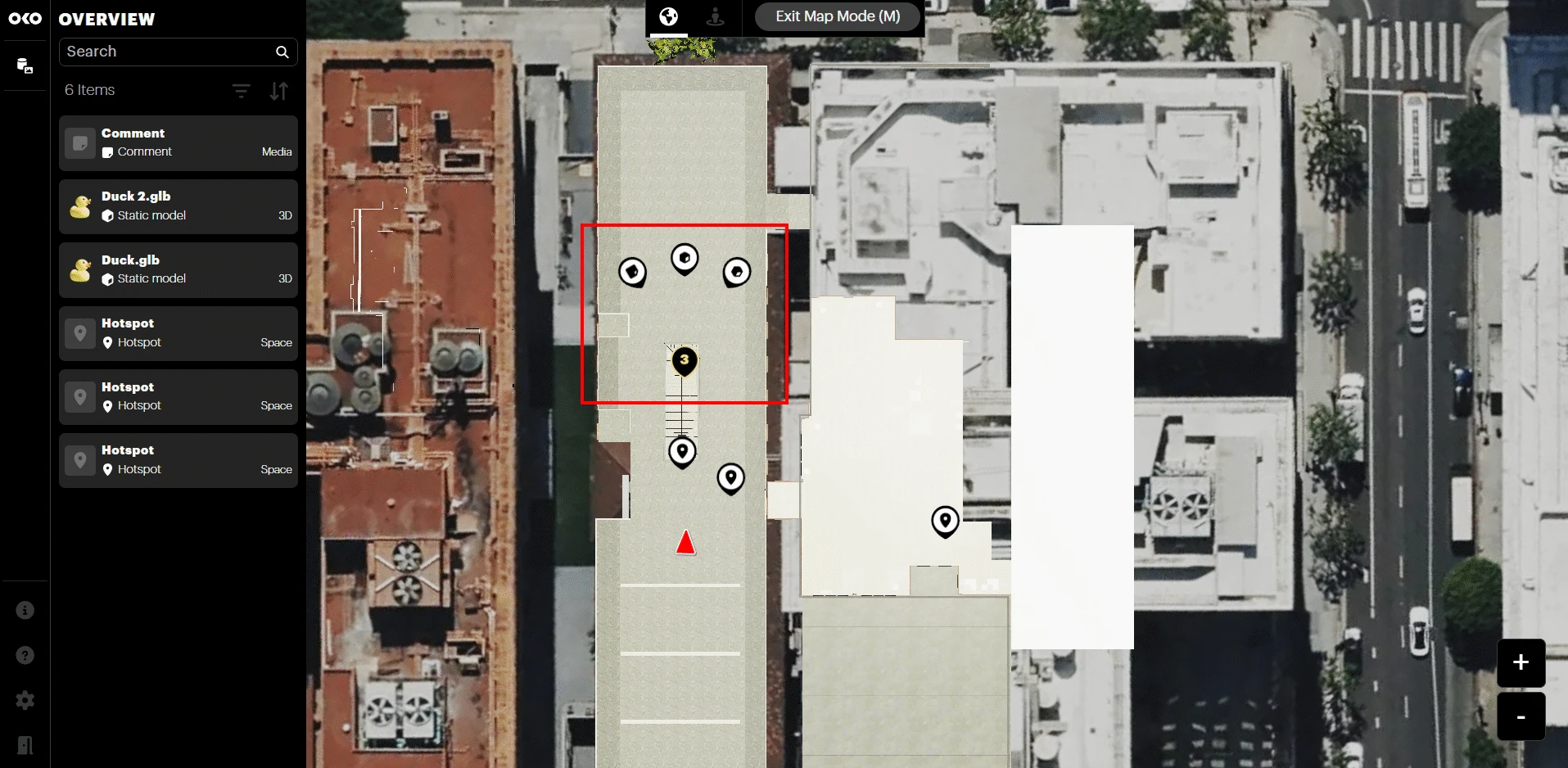
Objects that are located close to each other are grouped together as one pin. As you zoom in, you will see the grouped pins separate into individual pins, if the distance between them allows it.
If you click on a grouped pin, it will show the individual object pins above it. The object pins can then be selected as normal.
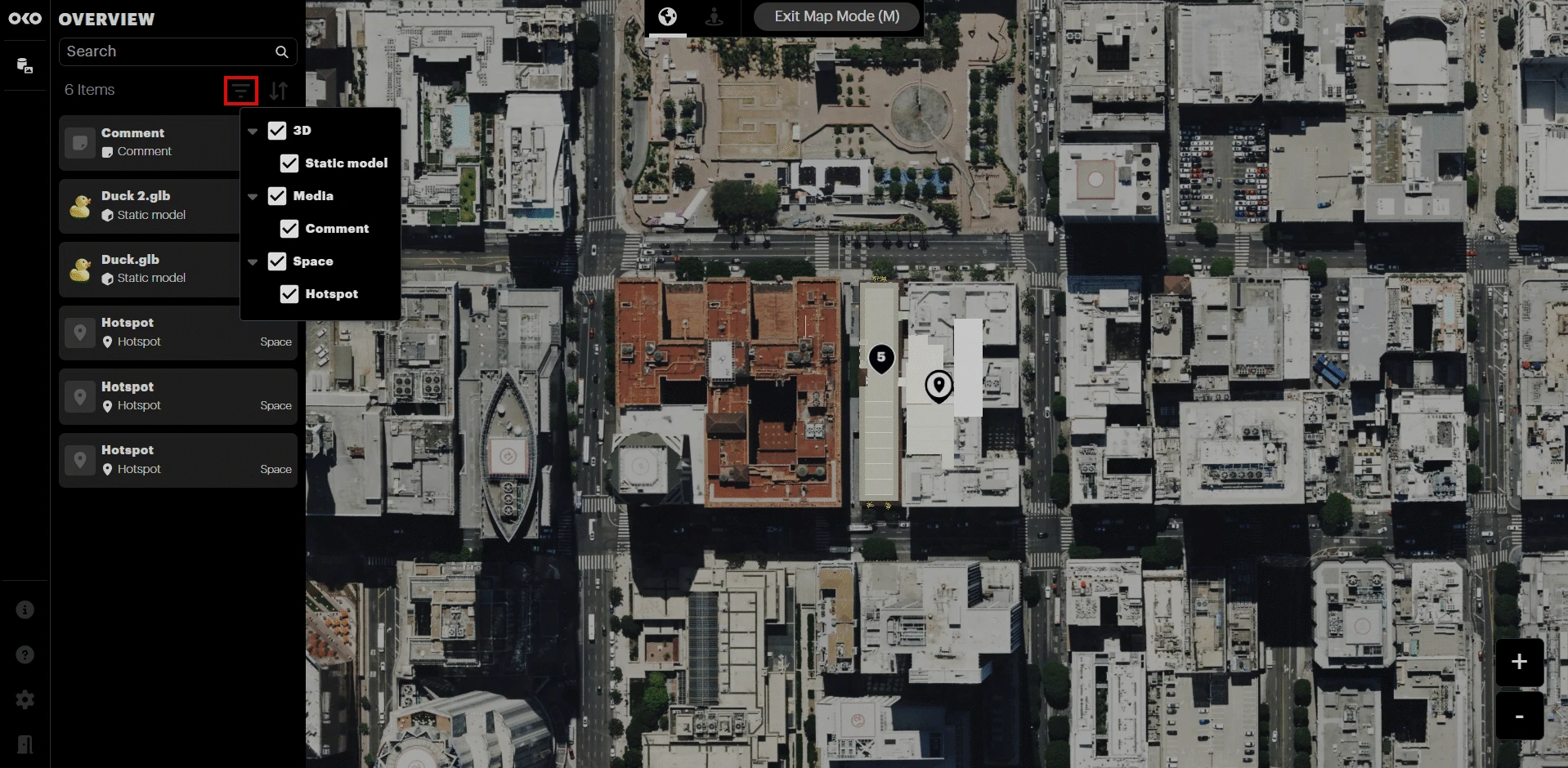
Using the filter button, you can filter the items shown in the Overview panel by type. This filtering will also apply to the pins displayed in the space.
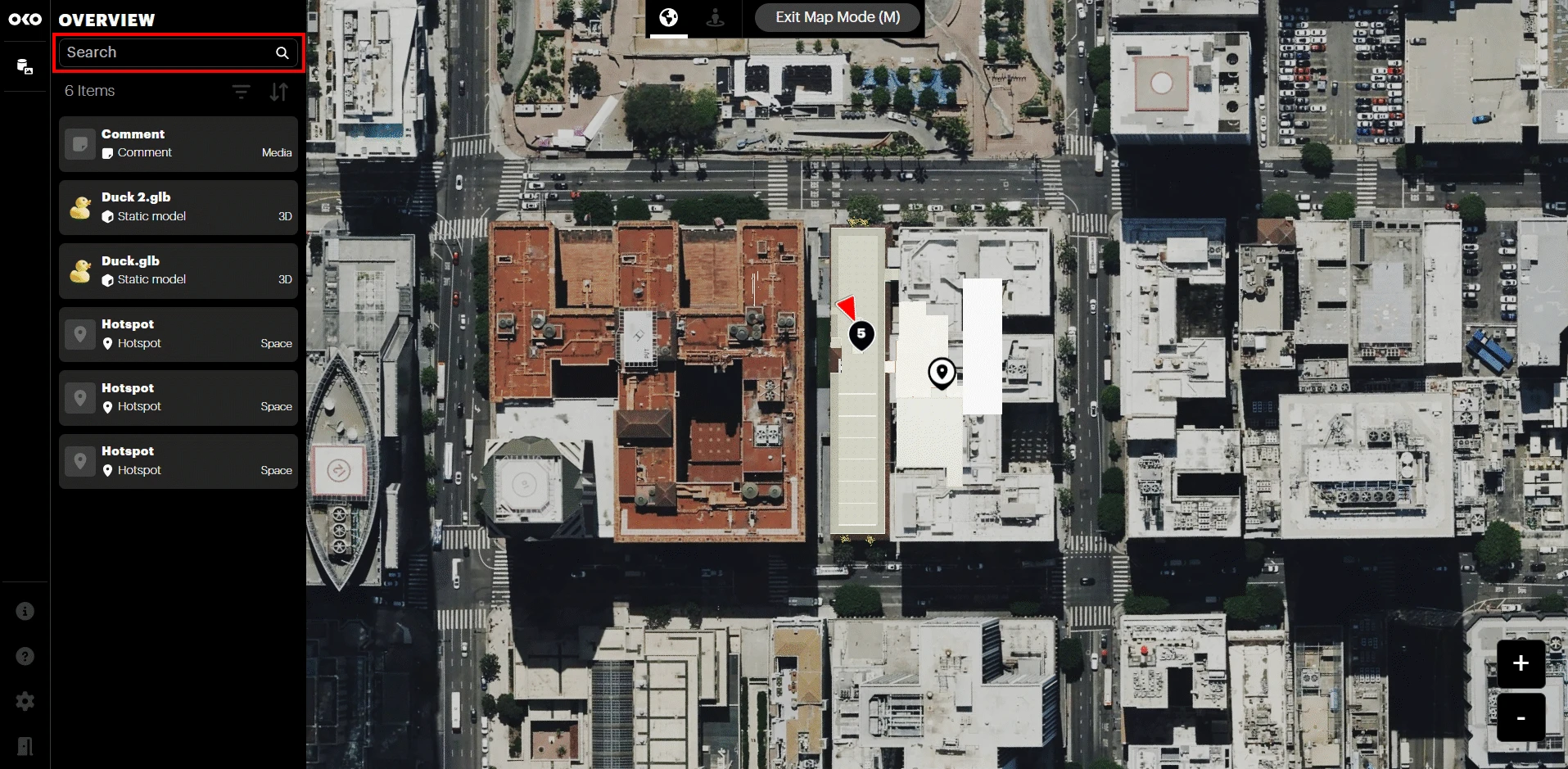
You can use the search bar to find space objects by name. The list will update to show the objects matching the search.
Finally, to exit Map Mode and return to the 3D view, click the Exit Map Mode button or press the M key.
Siteview
Users can also search for geolocated spaces using a map interface, called Siteview, which is accessible from the spaces hub. In the upper right corner, you will see a map icon.
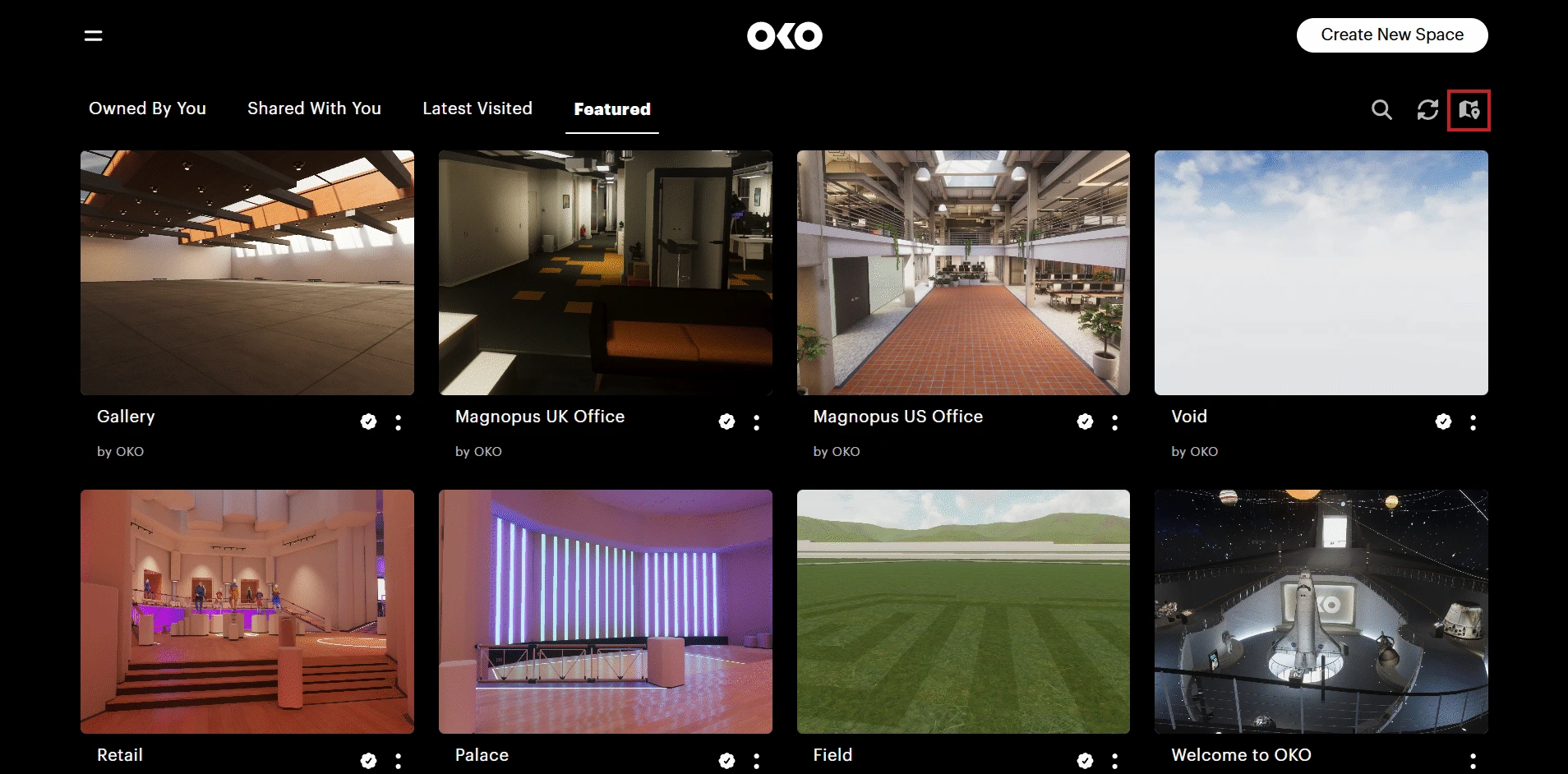
Click on the icon to open the Siteview interface.
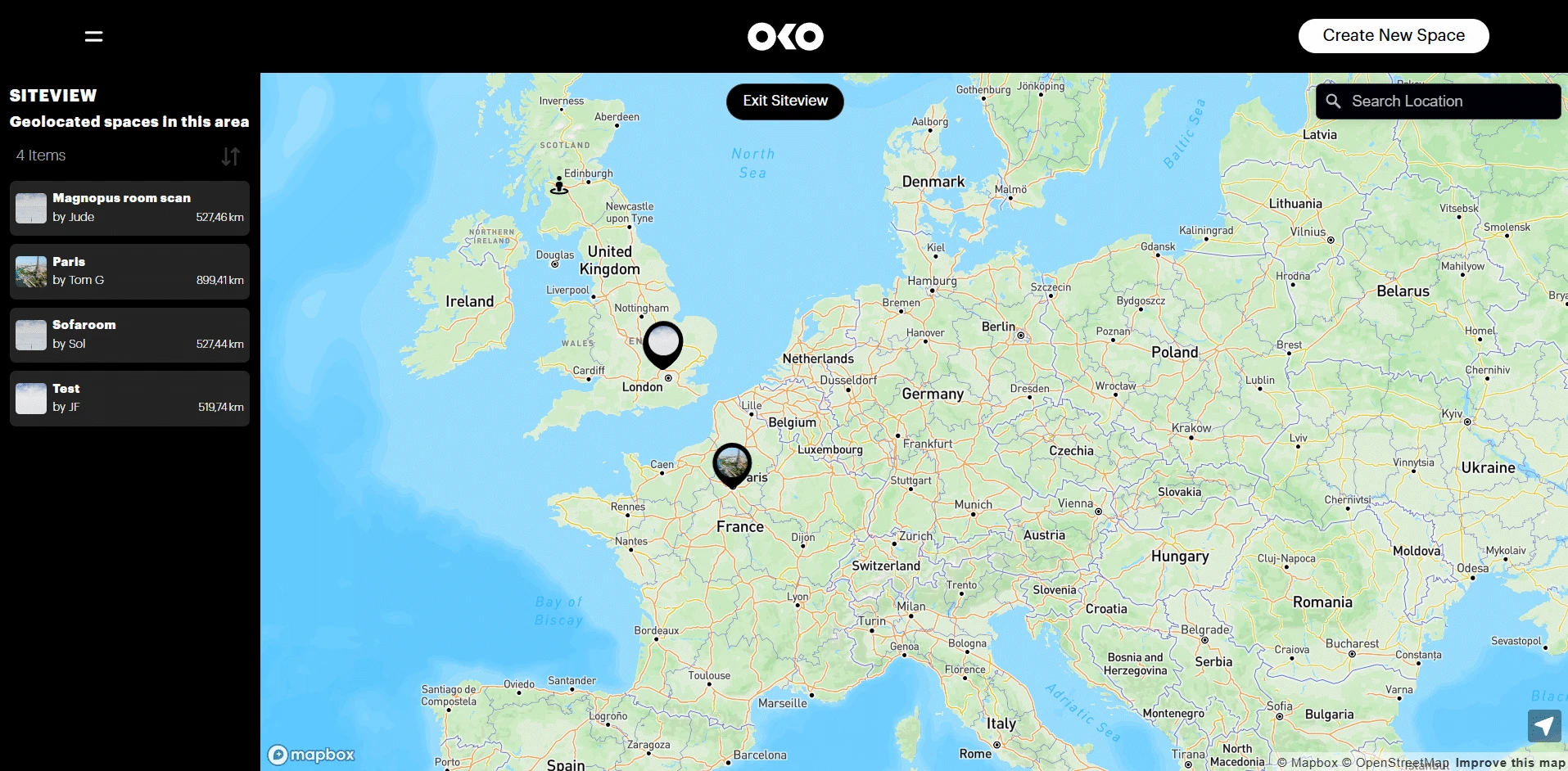
From here, you can navigate the map and search for geolocated spaces in your area.
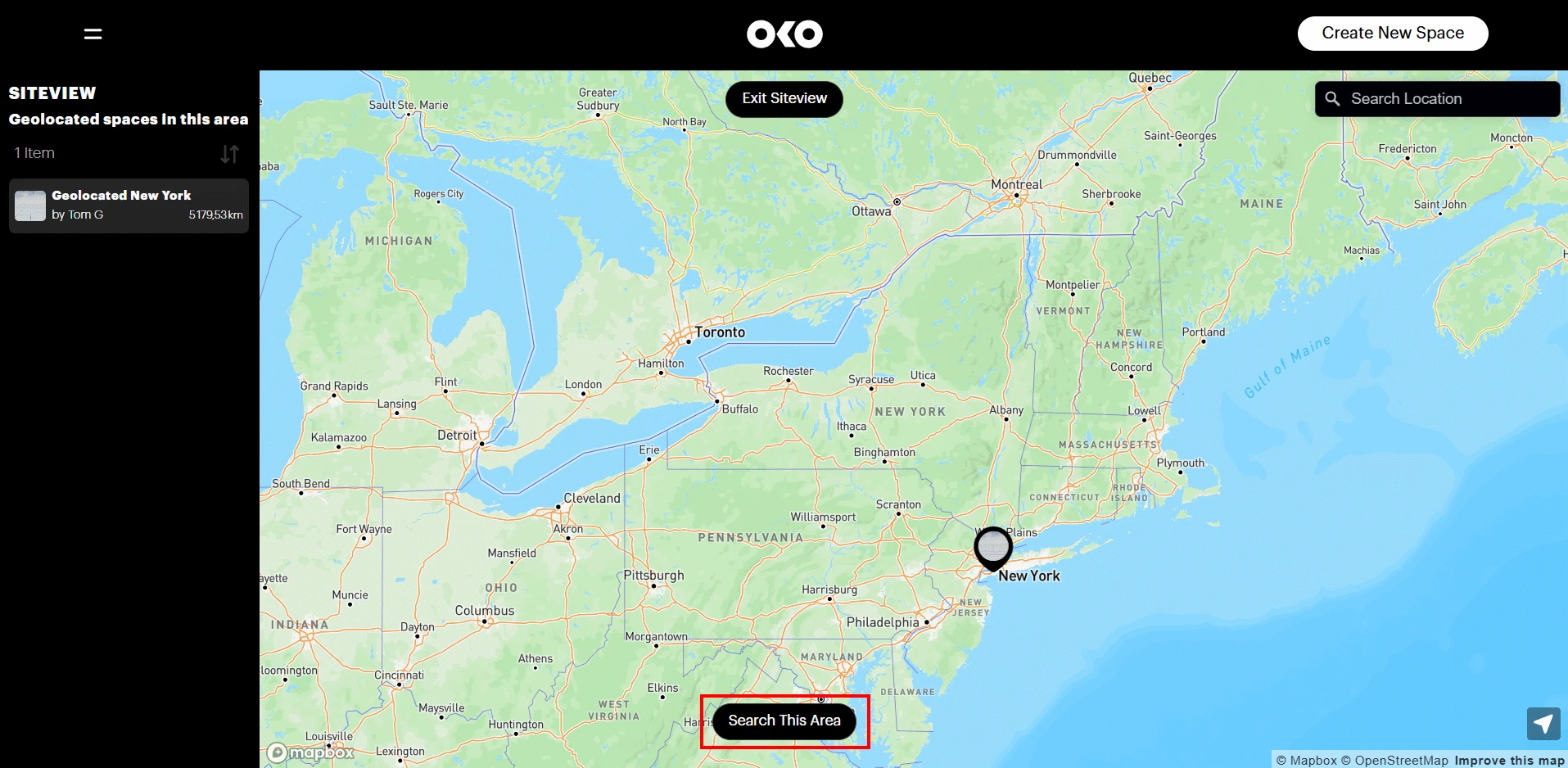
If you pan and zoom the map to navigate to a location, the Search This Area button will appear at the bottom-center of the map. Clicking this button will search the area currently visible on screen and refresh the view with geolocated spaces.
Note that spaces visible on the map will not update automatically as you navigate around the map. You must click the Search This Area button to refresh the view.
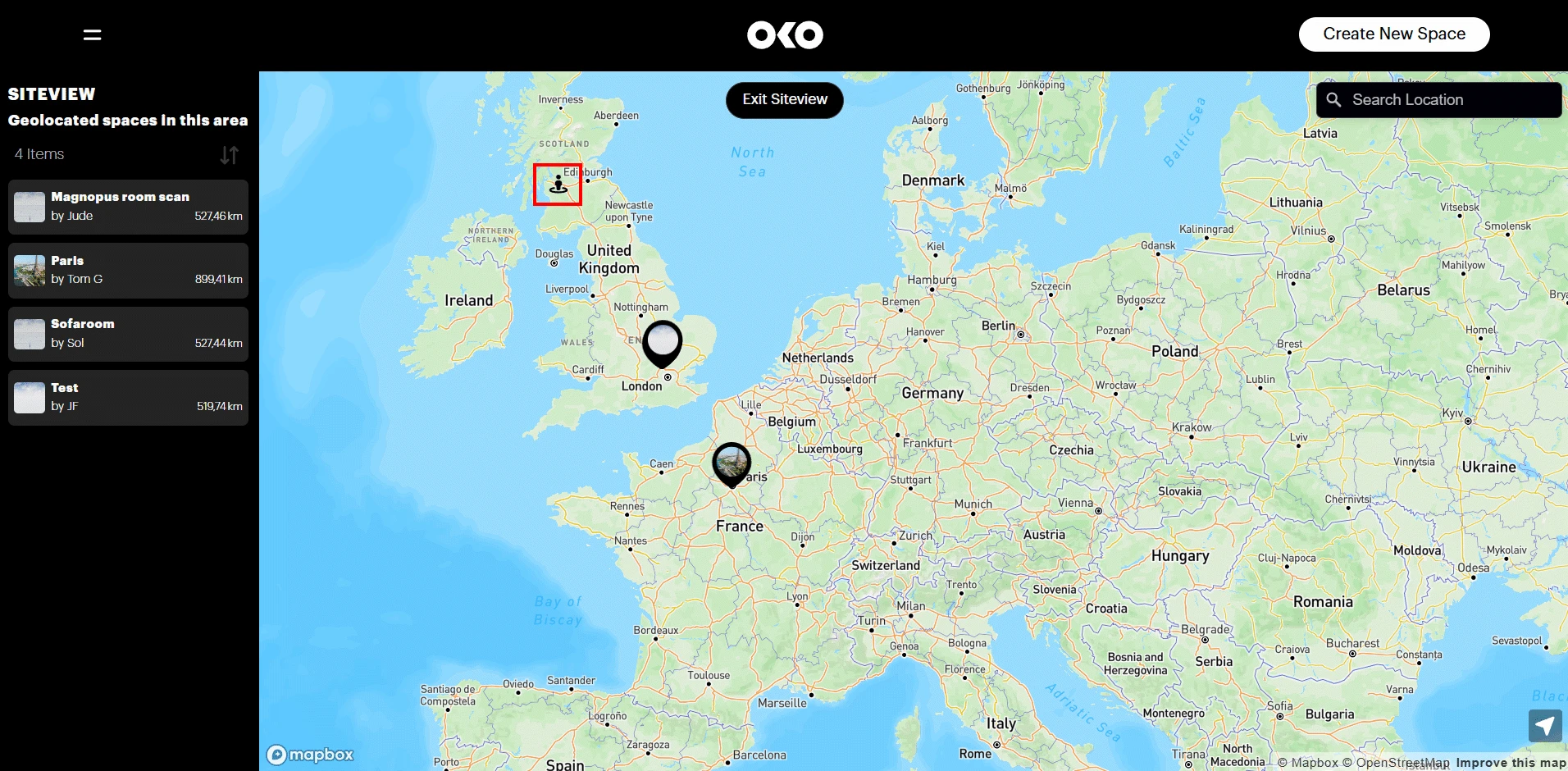
If you allow OKO to access your location, it will be shown on the map by the person location icon.
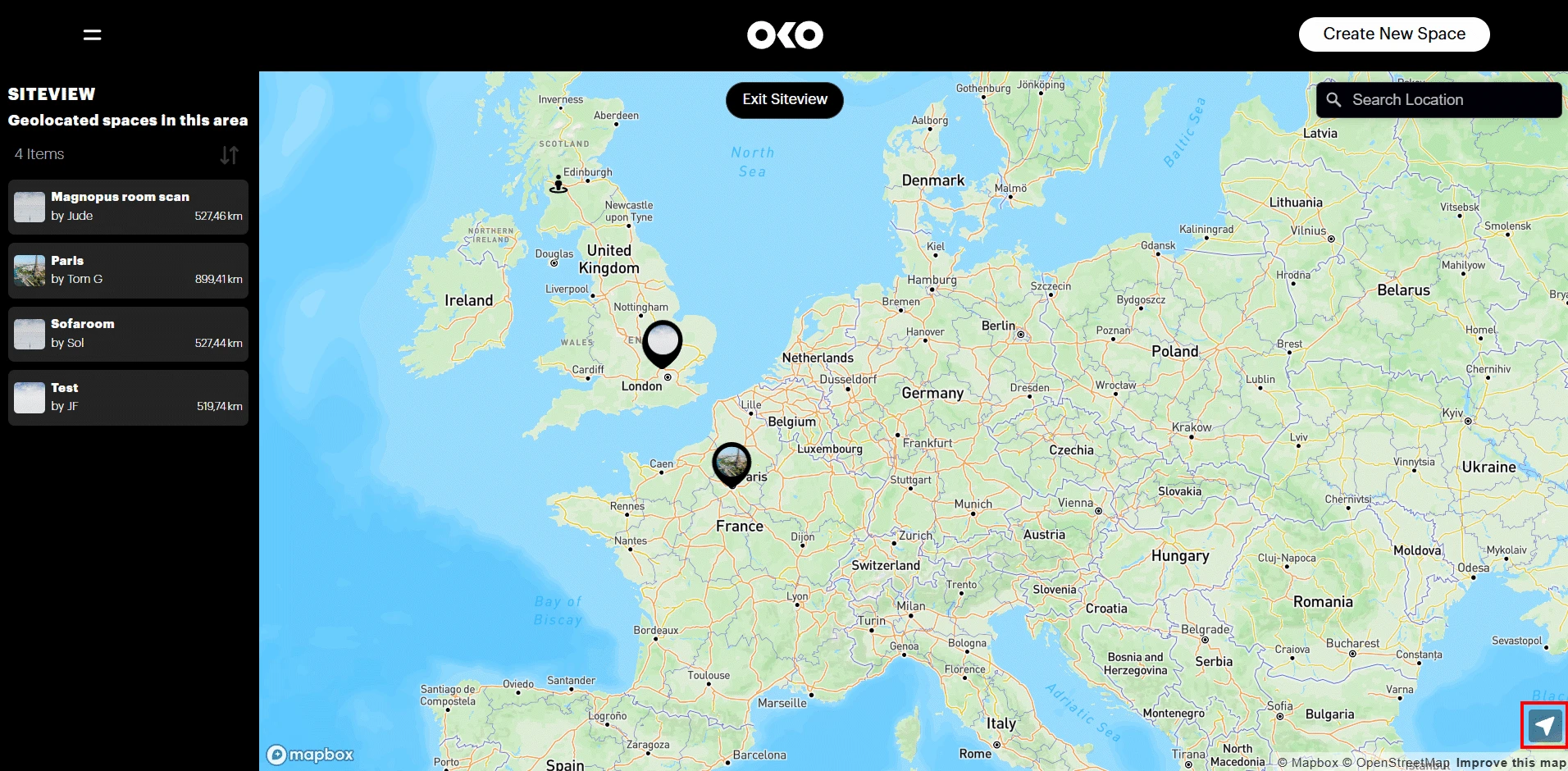
You can use the location button in the bottom right corner to re-position the map at your location at any point.
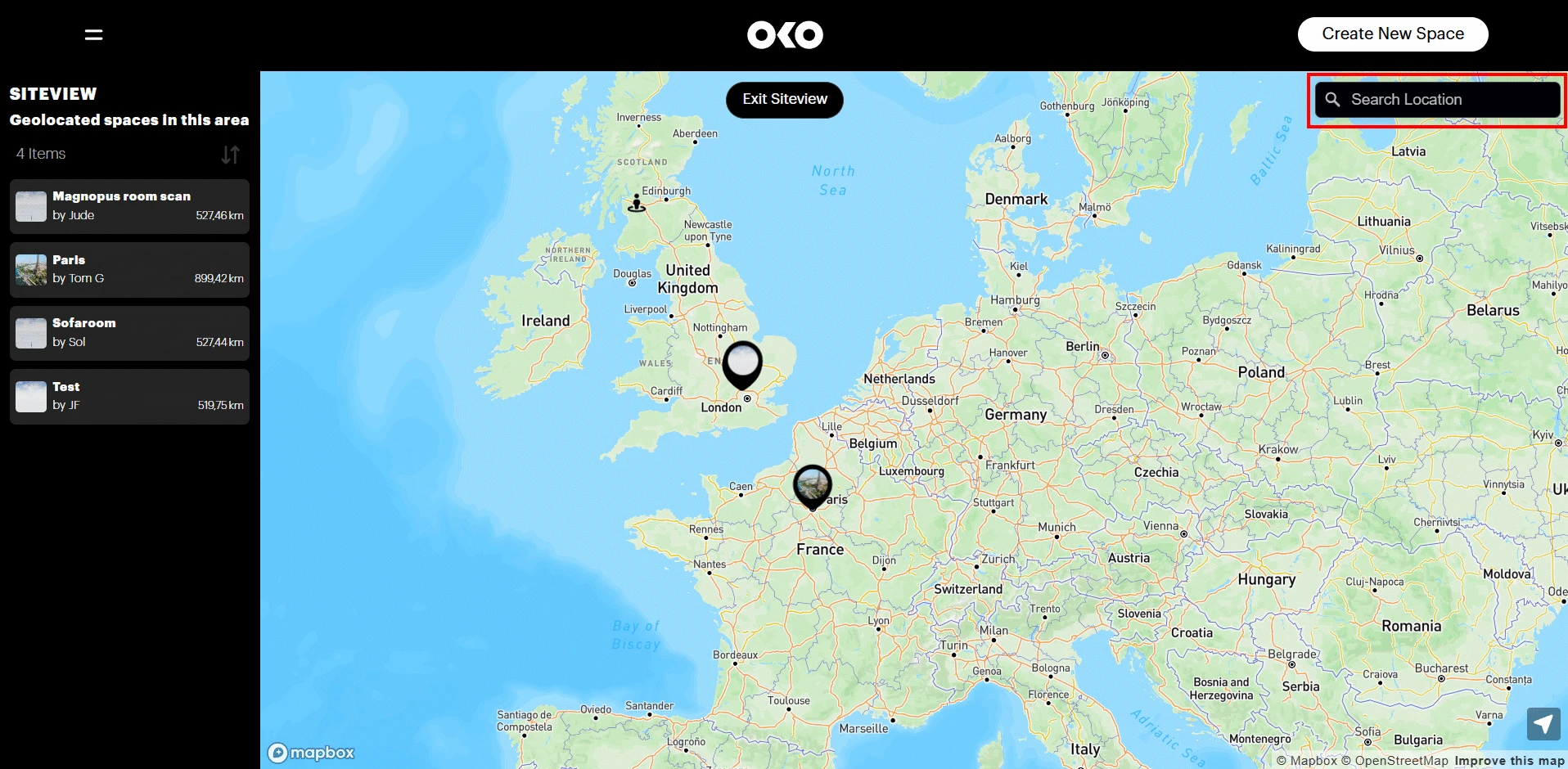
You can also use the search box in the top-right to search for places or addresses. Selecting a search result will position the map at that location.
The panel on the left-hand side of the map lists the currently displayed map spaces. The space name, owner, and distance to your location are shown for each. The distance units used are determined from your browser locale settings.
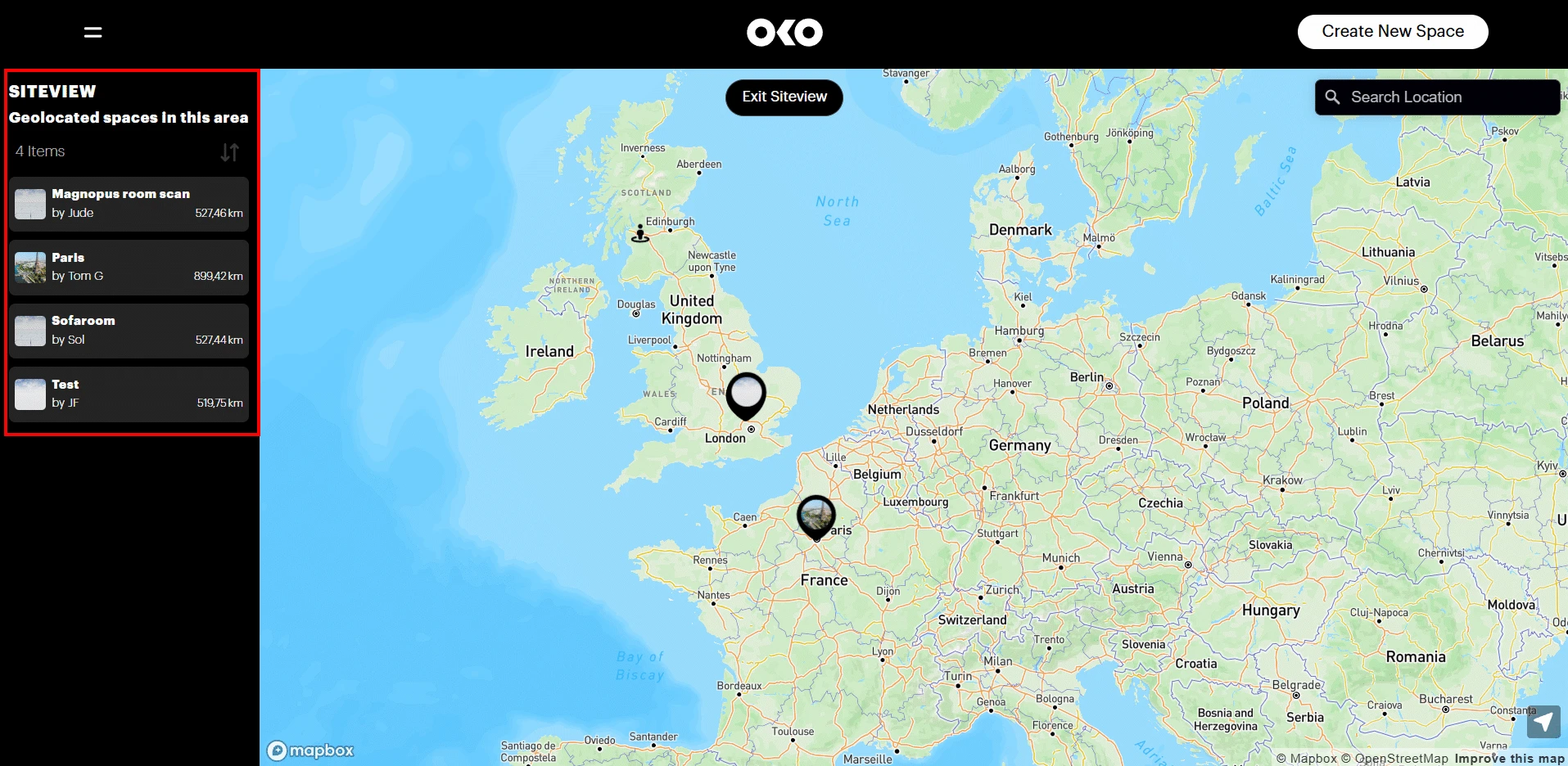
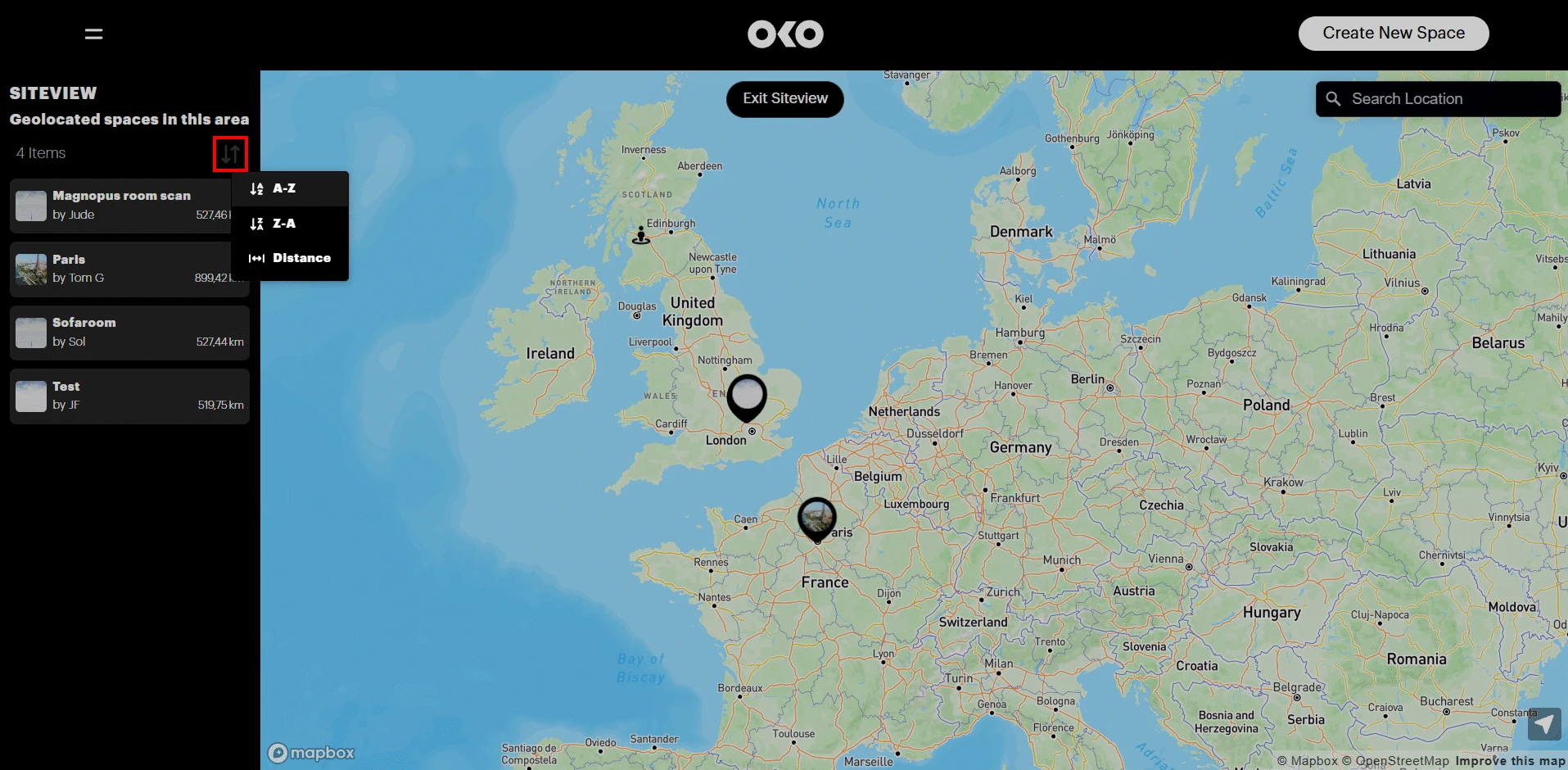
The list can be sorted by name or distance to your location, using the sort menu.
Clicking on a space, via the list or the pin on the map, will select it. This will center the map on the space location and display a pop-up panel on the map.
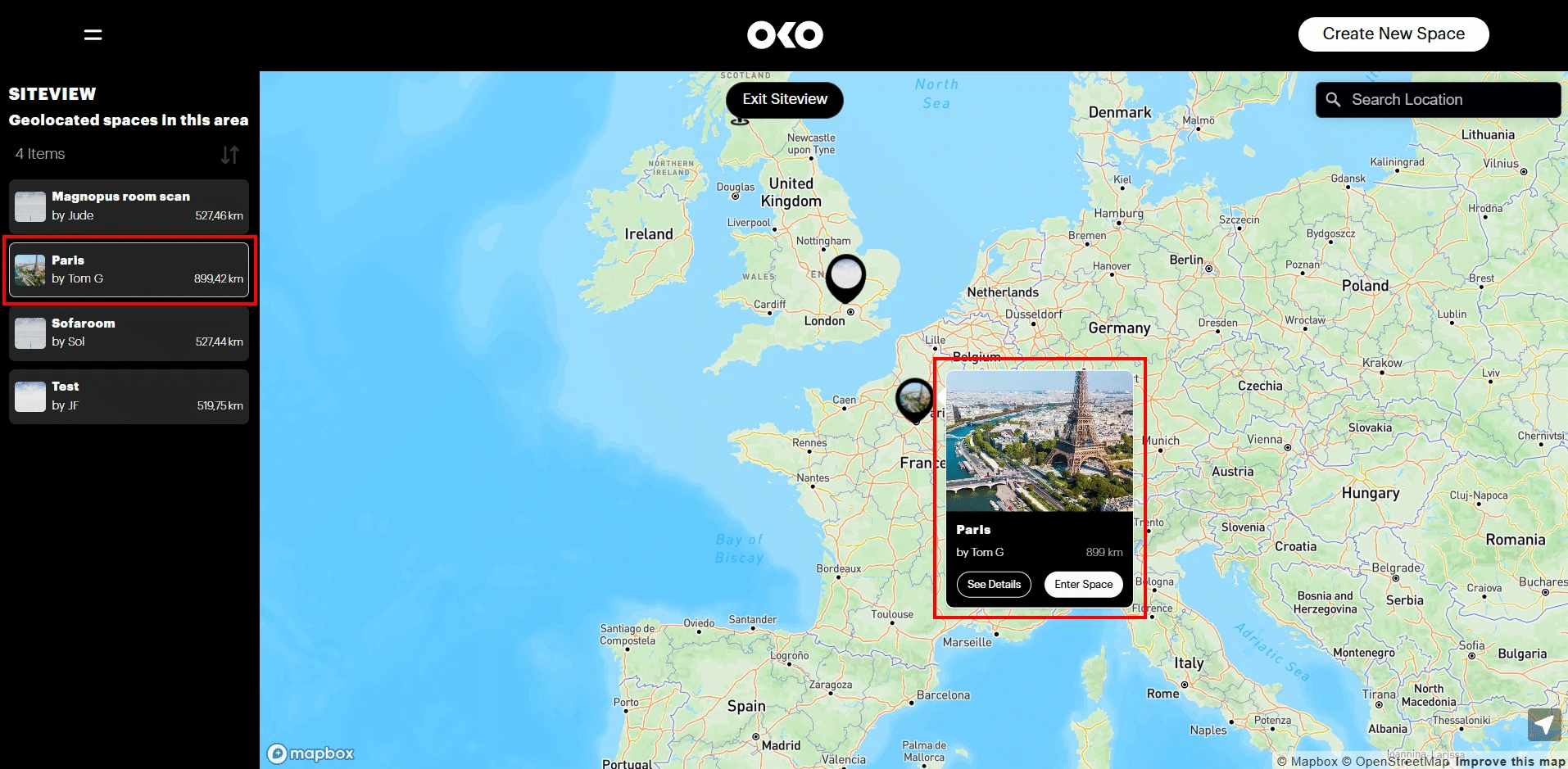
Using the pop-up panel, you can bring up the space details or enter the space.