
Hotspots
OKO version 4.5.0 - CSP 6.34.0
This article explains what hotspots are used for and how to create and edit them.
A hotspot is a specific location that defines a place of interest within your space. Hotspots can be positioned anywhere and adjusted using the same editing tools you use for other entities or components.
Hotspots also feature a heading rotation. If you select a hotspot component and use the rotation gizmo, you’ll notice it only allows for adjusting the heading around the Y-Axis.
Together, the location and heading define the exact view you will see when using the hotspot.
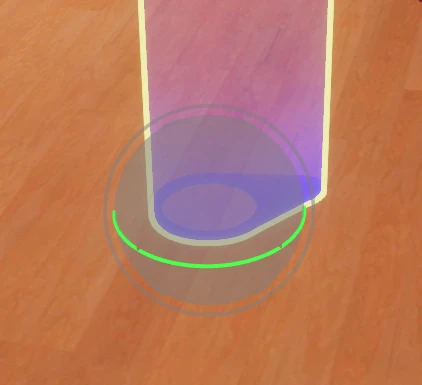
Hotspot component Gizmo Editor
Hotspot types
A hotspot can be defined as one or both of the following types:
Teleport Point | Allows users to teleport to the hotspot’s location. |
Spawn Point | Defines the user’s initial location and orientation in the space. |
Types are assigned via the Properties panel for Hotspot Components.
.webp?inst-v=ba8752e4-2bac-4988-af92-05f1ebc5fe74)
Hotspot type editing
Note that hotspots must have at least one type selected (Teleport, Spawn Point, or both).
Teleport Points
A Teleport Point is one that viewers can use to navigate quickly around your space. Upon arrival, the user is oriented to face the hotspot's rotation direction.
Spawn Points
When a space contains a single hotspot component of type Spawn Point, that hotspot will be used to position and orient users as they enter the space. When a space has multiple hotspots of this type, users entering the space are presented with a list of locations to choose their starting point.
.webp?inst-v=ba8752e4-2bac-4988-af92-05f1ebc5fe74)
Hotspots panel
Selecting the hotspots icon in the left toolbar opens the Hotspots Editor panel. This panel is split vertically into two sections: the upper half is for managing hotspot groups, and the lower half displays all individual hotspots.
All Hotspots
.webp?inst-v=ba8752e4-2bac-4988-af92-05f1ebc5fe74)
The All Hotspot list
The All Hotspots area displays a list of all the hotspots within your space. Selecting a hotspot in this area directly selects that hotspot component, and so the hotspot details can be updated using the in-space gizmo and the Properties panel.
Each hotspot shows the name and the selected types.
Hovering the mouse over a hotspot displays the Teleport To function icon. Click this icon to teleport your player to the hotspot’s location so you can preview the view your users will see.
.webp?inst-v=ba8752e4-2bac-4988-af92-05f1ebc5fe74)
Hotspot detail with Teleport icon
As an editor of the space, the teleport function is available on all hotspots, regardless of their type. For viewers only, hotspots with the type Teleport Point can be used for navigation.
Hotspot Groups
.webp?inst-v=ba8752e4-2bac-4988-af92-05f1ebc5fe74)
Hotspots can be grouped into meaningful sets. A Hotspot Group can contain one or more hotspots, and hotspots can belong to more than one Hotspot Group.
Use the + icon next to the Hotspot Groups title to create a new Hotspot Group.
The Hotspot Group’s name can be edited by double-clicking on the Hotspot Group name label or by selecting Rename from the More : menu. Hotspot groups can also be deleted using the Delete function from the More : menu.
Hotspot Groups are created with a single hotspot member. This member can be changed using the drop-down list of hotspots.
Additional hotspots can be added to the group using the + icon next to the hotspot selector.
The More : menu contains functions to teleport to a hotspot’s location or to remove a hotspot from a Hotspot Group.
The order of the hotspots contained within a Hotspot Group can be changed by using the ☰ grab handle. Use the mouse to drag a hotspot up and down the list to change its position within the group.