
Entity locking
OKO version 4.5.0 - CSP 6.34.0
This article will show creators how to use entity locking to prevent inadvertent changes from being made to your spaces.
Locking an entity prevents the following actions from being performed:
Deleting the entity
Renaming the entity or components belonging to the entity
Reparenting the entity
Adding or removing child entities
Adding or removing components
Editing any properties on the entity or components belonging to the entity
Changing the visibility for any components belonging to the entity
Locked entities cannot be selected with the mouse in the space view
Comments attached to locked entities cannot be modified in any way
The effect of locking an entity applies only to that entity and not to any descendants.
Instructions
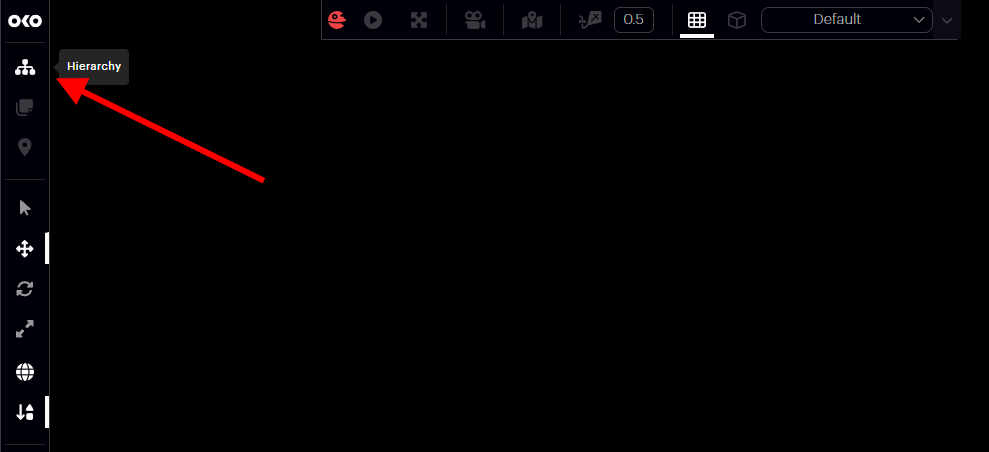
The Entity Locking feature is accessed through the Entity Hierarchy View. Ensure you have the Hierarchy View visible by selecting the Hierarchy button in the left-side toolbar.
Locking an entity
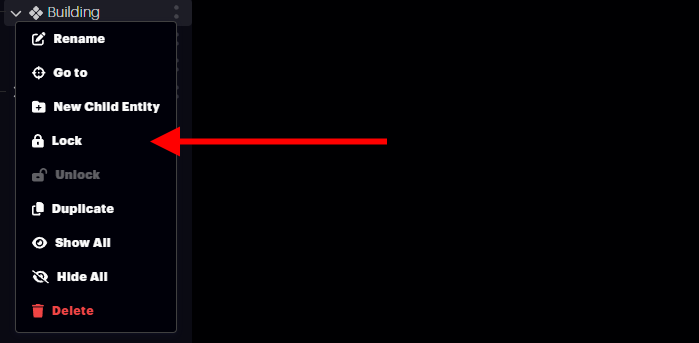
To lock an entity, select it in the Hierarchy View and use the menu available from the More : button. Select the Lock function from the menu.
Locked entities display a Padlock icon after the entity name to indicate the locked state.
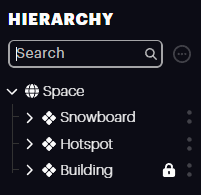
Locking an entity affects only that entity and does not have any effect on any of its descendants.
Locking an entity affects all users connected to a space and is persistent across editing sessions.
Selecting locked entities
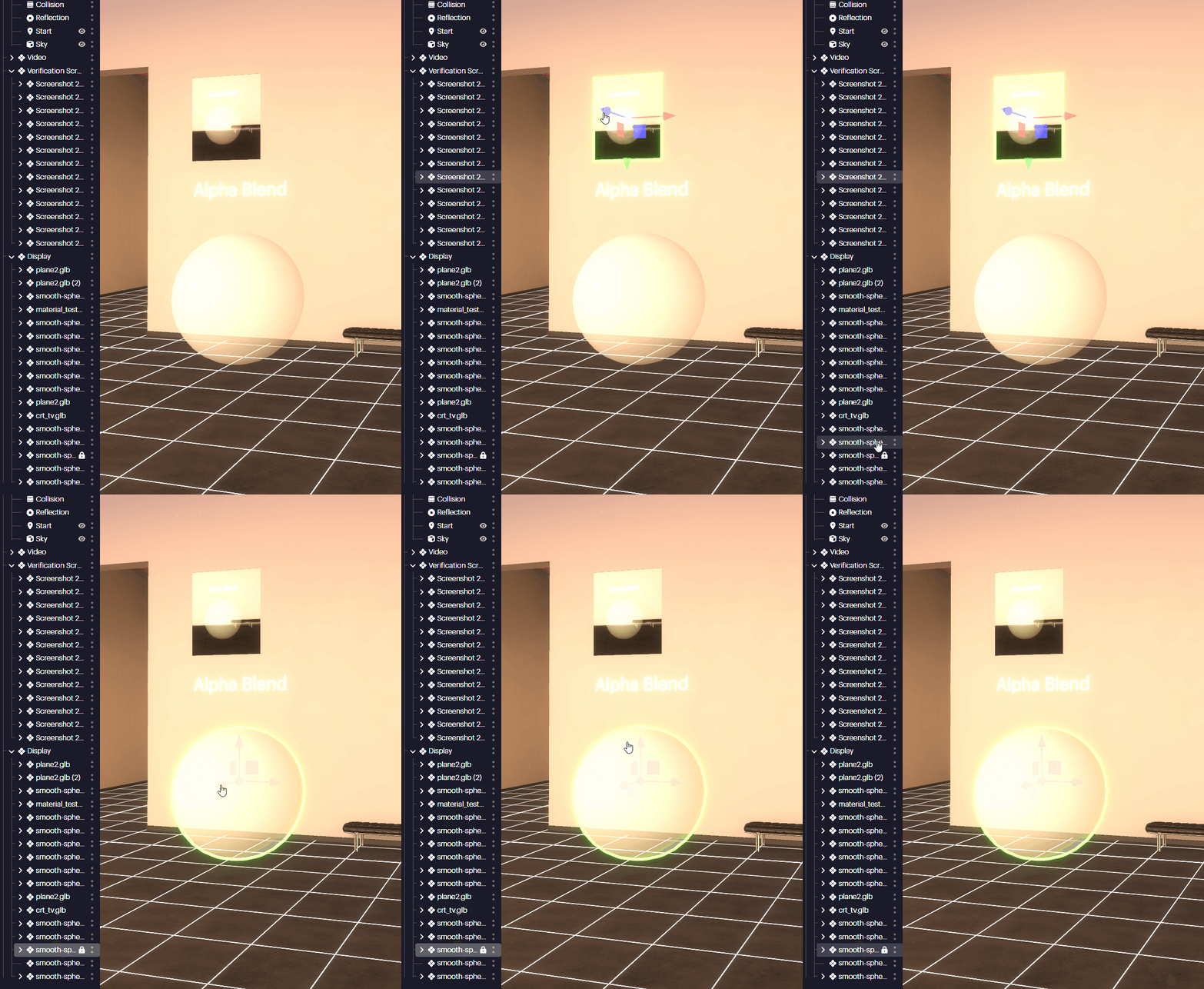
Locked entities can only be selected in the Hierarchy View. Selection using the mouse in the 3D view is not possible. This can be useful in complex scenes where reducing the set of selectable entities can make editing simpler and reduce the chance of inadvertent entity modification.
Properties of locked entities
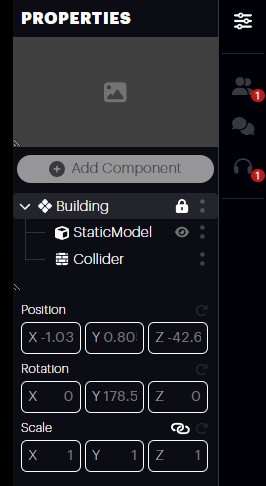
When a locked entity is selected, the Properties panel can be displayed as normal and will show all of the usual content, but all editing features will be disabled.
In this screenshot, the input fields have been disabled, and the Add Component function is also unavailable.
Unlocking an entity
Locked entities can be unlocked in one of two ways:
Click on the Padlock icon
Use the Unlock function from the Entity Context Menu
The small Hierarchy View subset view within the Properties panel additionally includes the Padlock icon and Function menu, which can also be used to unlock an entity.
Tips & notes
Entity locking can be useful in preventing inadvertent changes to completed design elements. This can simplify editing complex space designs by restricting selection using the mouse to a subset of active design elements. Clicking on a locked entity will result in the selection set being cleared.
Multi-selecting a combination of locked and unlocked entities will also disable the transform gizmo and editing on the Properties panel.
Locking entities also affects any comments that are linked. It’s not possible to make any modifications to comments linked to a locked entity.
At this time, scripts cannot make changes to locked entities or any components attached to them. This restriction will be removed in future versions of OKO.