
OKO Web 4.6.1 | OKO Unreal 4.8.2 | CSP 6.36.0
What is an OKO entity?
An entity in OKO represents a general-purpose object that exists in 3D space. It has a position, rotation and scale, and can hold any number of components.
Components characterize an entity as possessing a particular behavior, and hold the data needed to model that behavior.
For example, an entity representing some mesh may have a static model component which references a particular mesh asset in the asset library.
What is an OKO component?
The OKO platform allows you to craft engaging cross-reality experiences and environments, accessible through a range of different platforms and devices. To achieve this, you build up an experience using entities and components.
While entities do a lot behind the scenes, in your space, they will have no visual appearance, just transform properties that you can use to define a position, rotation, and scale. The real power comes from the components that you add to them. We use components to compose the visual appearance of our space and the interactive elements within it.
Let's say that you wanted to add a model of a dinosaur to your space. To do so, you would create an entity, add a Static Model Component, and then reference your dinosaur mesh.
Let's say you wanted the dinosaur model to be animated. Instead of the Static Model Component, you would create an entity with an Animated Model Component and reference a skeletal dinosaur mesh with animation.
But what if you wanted the dinosaur to be interactive and to only play its roar animation when a user got close to it?
Well, you would create an entity with an Animated Model Component and a Script Component, and you could use the script to define this behavior. That example could also be achieved with a Collider Component set to act as a trigger, and then when the player entered the trigger volume a trigger event would be used to play the animation via the script.
Components are a powerful way to compose complex behavior and often, many different approaches can be used to create the same effect.
Common Component Properties
Here are some common properties you’re likely to encounter when working with any Component.
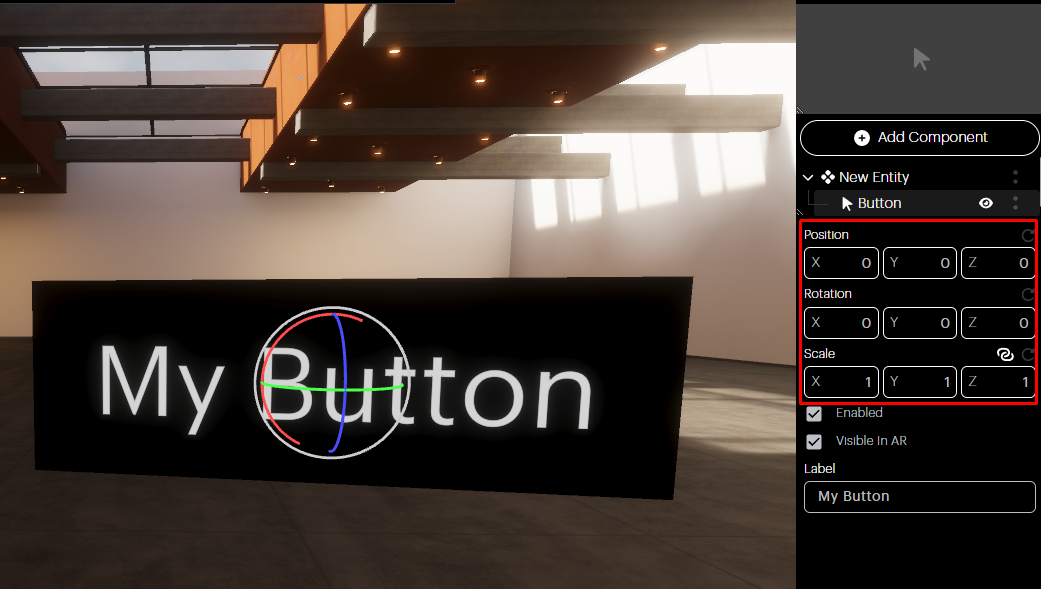
Transforms: The Position, Rotation, and Scale transforms can be used to place your Component anywhere in the space.
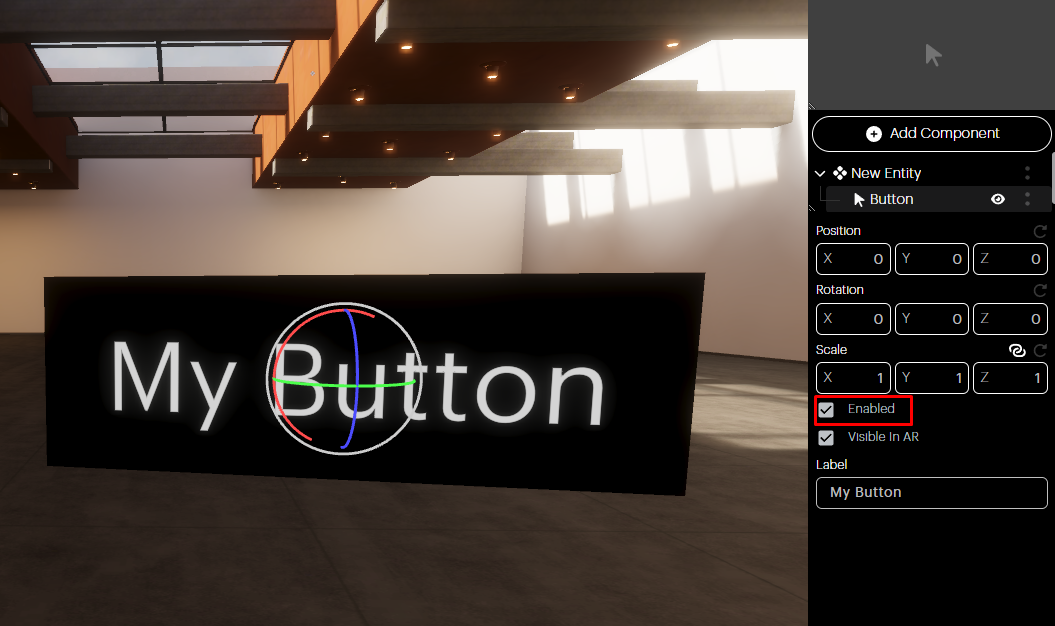
Enabled checkbox: If you want your component to exist in the space, but not be activated, uncheck the Enabled box.
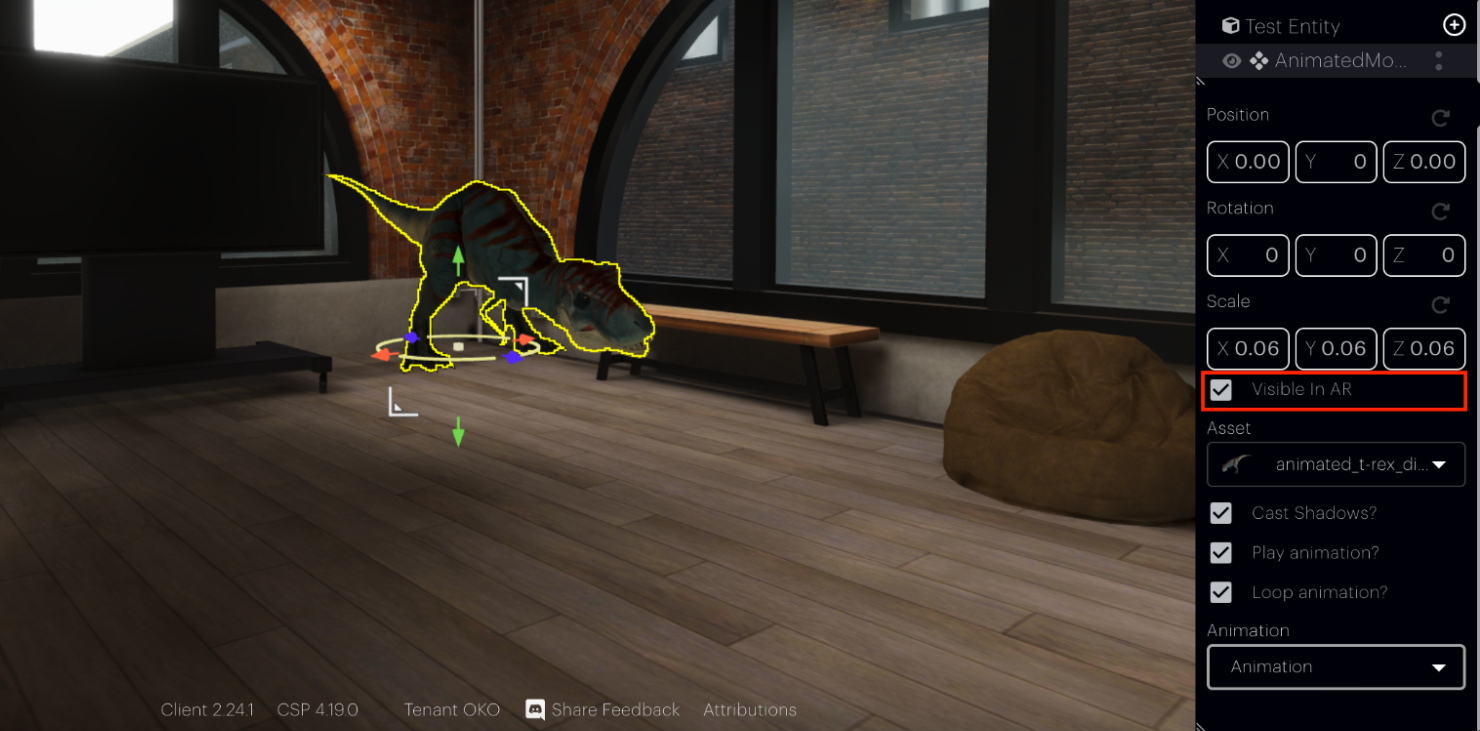
-
Visible in AR: Determine whether the component will be visible in augmented reality (AR) mode by ticking the Visible in AR checkbox.
-
Cast Shadows: Toggle the shadow for the asset on or off.
Component Transforms
Component transforms, like with entity transforms, are comprised of a position, rotation and scale. These define where and how the component shows up in the 3D space.
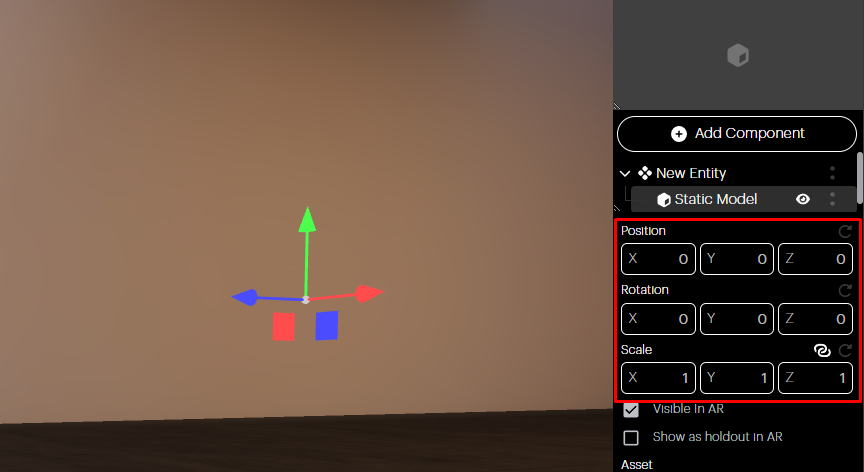
Transform Property Linking
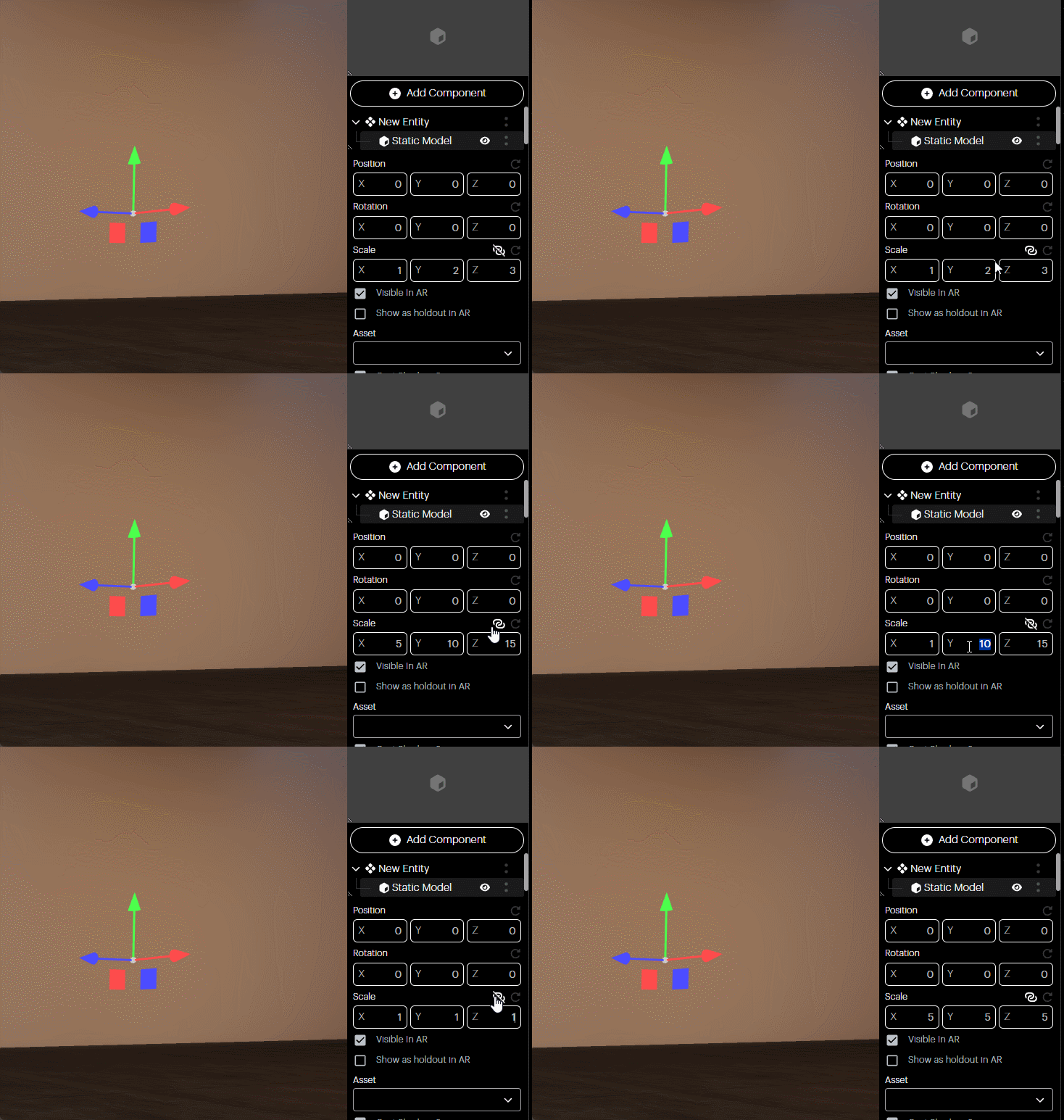
Certain transform properties, such as scale, also offer a property-linking feature, which can be enabled or disabled by toggling the link icon. When linking is enabled, entering a value in any of the fields will auto-apply scale the other fields by the same ratio.
Transform Input Formulae
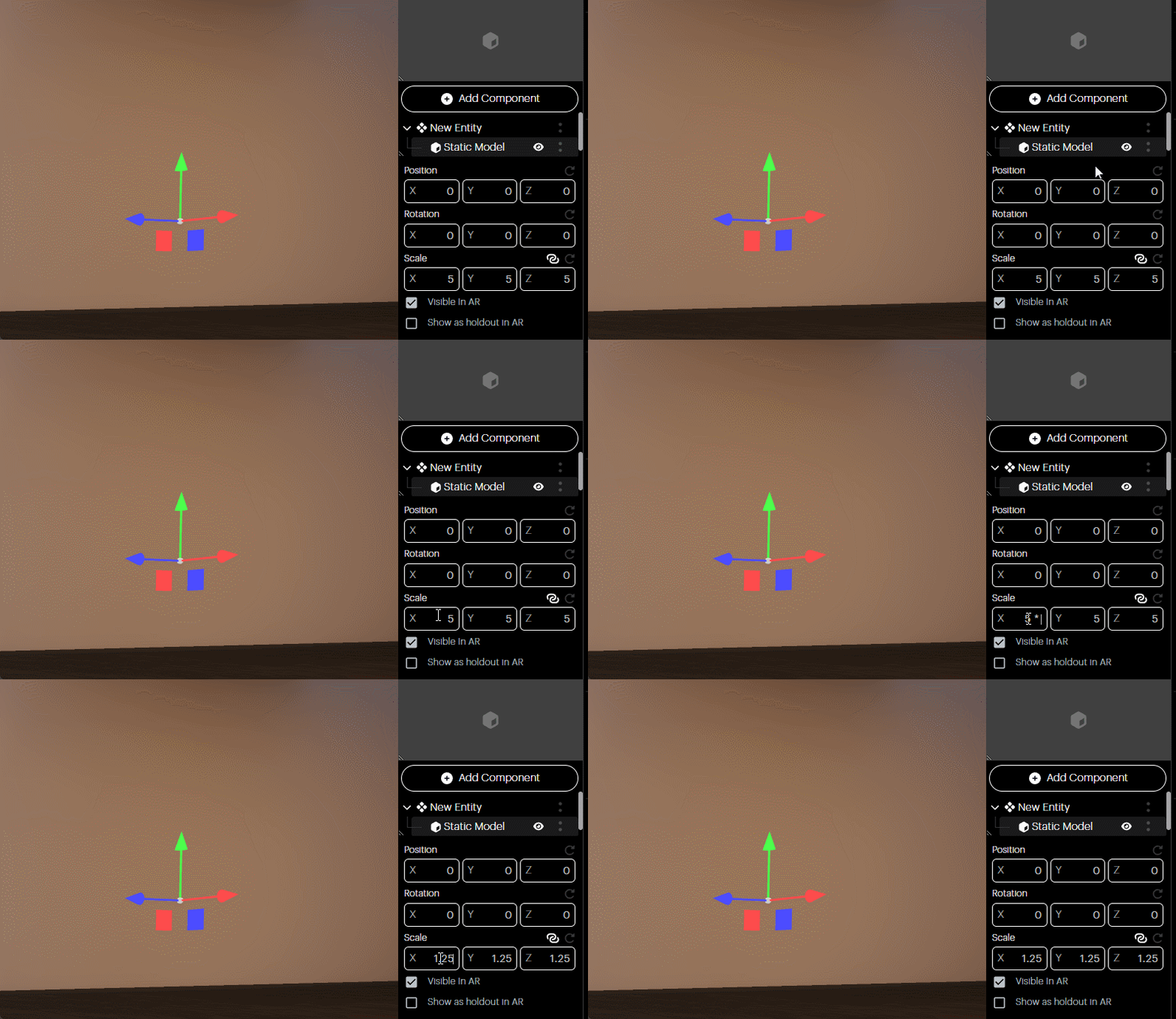
The transform input fields also accept basic mathematical formulae, and will evaluate them before applying the result.
Different types of components
|
Component name |
Description |
|---|---|
|
AI Chatbot |
Gemini-powered voice interactions with an AI, whose responses can be tailored to suit the context of the space. |
|
Animated Model |
Enables users to add 3D animated skeletal meshes to a space. Files are stored in glb format by the Magnopus Cloud Services. Component allows for replication of playback state. |
|
Audio |
Allows users to define spatial audio sources for their spaces using mp3 audio files. Component allows for replication of playback state. |
|
Button |
Allows users to add a button to a space. An |
|
Cinematic Camera |
Represents a physically-based camera in the space, which can also be piloted in Camera Mode. |
|
Collider / Trigger |
Enables users to define collision/trigger volumes for an entity. Colliders can be converted to Triggers, and events will then be raised when a user interacts with them. These events can be responded to via scripts. |
|
E-Commerce |
Enables users to purchase physical products from within OKO spaces via an integration with Shopify. |
|
External Link |
Enables users to attach a clickable link to an entity, with the specified text directing the user to the recorded URL. |
|
Fiducial Marker |
Allows users to anchor their spaces to the physical world by defining a 2D image to use as a fiducial marker. |
|
Fog |
Allows users to define an area of depth fog within a space, with options to control the type (linear or exponential) as well as the color and density. |
|
Gaussian splat |
Allows users to add a Gaussian splat entity to a space. |
|
Hotspot |
Defines a punctual location in the space that can either be used as a teleport location by users, a starting location for when users enter the space, or both. |
|
Image |
Allows users to add jpg or png images to their space. |
|
Light |
Enables users to attach point, spot, or a directional light to an entity, with control over intensity, color, and radius. |
|
Portal |
Allows users to define a portal which can be used to link spaces and allow users to travel from one to another. |
|
Reflection Probe |
Enables users to define reflections in a scene by assigning an HDR capture. |
|
Screen Sharing |
Represents a panel in the space which will render the shared screen of a user, should they click on it. |
|
Script |
Script components are used to define custom interactions that will be executed on all engines and platforms. This means that a user exploring your space in a Unity iOS app will experience the same thing when pressing a button as another user on a web client, or in an Unreal Windows or Android application. Scripts allow users to respond to events raised by components, get the property state of components, and update them. |
|
Spline |
Allows users to create and edit splines, along which objects can be animated via scripts. |
|
Static Model |
Enables users to add 3D meshes to a space. Files are stored in glb format by the Magnopus Cloud Services. |
|
Text |
Allows users to add text to a space. |
|
Video |
Allows users to add videos to their space. These can be created using mp4 files uploaded to the Magnopus Cloud Services, or by specifying the URL of a video stream. |
|
Video Stream |
Allows users to add a video stream into their space. |
Component support across OKO applications.
This table outlines platform support for each of the components listed above.
Key
🟢 Supported
➖ Not supported
|
Component |
OKO Unreal Plugin |
OKO iOS |
OKO Web |
|
AI Chatbot |
🟢 |
🟢 |
🟢 |
|
Animated Model |
🟢 |
🟢 |
🟢 |
|
Audio |
🟢 |
🟢 |
🟢 |
|
Button |
🟢 |
🟢 |
🟢 |
|
Cinematic Camera |
🟢 |
➖ |
🟢 |
|
Collider / Trigger |
🟢 |
🟢 |
🟢 |
|
E-Commerce |
➖ |
➖ |
🟢 |
|
External Link |
🟢 |
🟢 |
🟢 |
|
Fiducial Marker |
➖ |
🟢 |
🟢 |
|
Fog |
🟢 |
➖ |
🟢 |
|
Gaussian Splat |
🟢 |
🟢 |
🟢 |
|
Hotspot |
🟢 |
🟢 |
🟢 |
|
Image |
🟢 |
🟢 |
🟢 |
|
Light |
🟢 |
🟢 |
🟢 |
|
Portal |
➖ |
➖ |
🟢 |
|
Reflection Probe |
🟢 |
🟢 |
🟢 |
|
Screen Sharing |
➖ |
➖ |
🟢 |
|
Script |
🟢 |
🟢 |
🟢 |
|
Spline |
➖ |
➖ |
🟢 |
|
Static Model |
🟢 |
🟢 |
🟢 |
|
Text |
🟢 |
🟢 |
🟢 |
|
Video |
🟢 |
🟢 |
🟢 |
|
Video Stream |
➖ |
➖ |
🟢 |
That’s it for the basics!